10 min read
How to connect Squarespace to Google Sheets
How to connect Squarespace to Google Sheets for what you need: orders that sync every hour, form submissions, products and stock, or a sheet on your site.

Tristan Tsvetanov
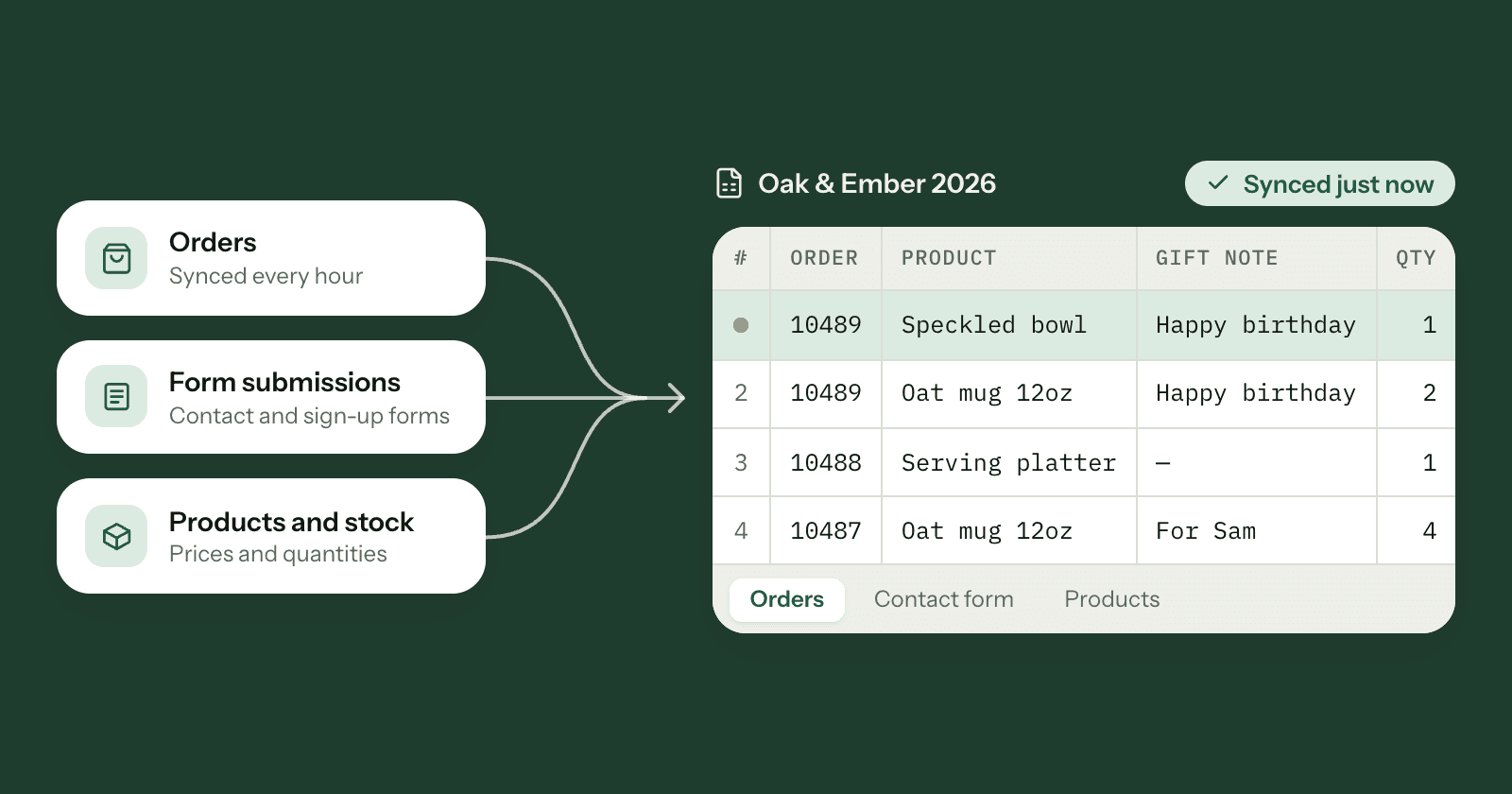
There are a few ways to connect Squarespace to Google Sheets, and the right one depends on what you want in the sheet. Store orders, contact form submissions, stock levels and a table shown on your website each have a different best tool. This guide covers all four, with the real menu names, so you can pick the one you need and set it up today.
Which one do you need?
- Orders: every order in a sheet, kept up to date.
- Form submissions: contact, booking or sign-up forms.
- Products and stock: prices and stock levels.
- Showing a sheet on your site: a price list or timetable on a page.
Already decided and want to compare tools? Jump to other ways to connect Squarespace to Google Sheets.
Quick answer: Squarespace orders to Google Sheets
- Sign up for SuperJack and click Connect Squarespace.
- Click Connect Google Sheets.
- Choose Orders, a spreadsheet and a sheet, then click Create workflow.
- Click Run a test sync. It then syncs every hour.
For form submissions, see send form submissions to Google Sheets.
Connect Squarespace orders to Google Sheets
If you sell on Squarespace, the sheet you most likely want is a list of every order: who bought what, what they wrote in your checkout form, and whether it's shipped yet. Squarespace doesn't keep a sheet like that up to date on its own, so this is what we built SuperJack for. It takes about two minutes.
- Go to superjack.app/register and click Start free trial, or Sign up with Google. You won't be asked for a card yet.
- Click Connect Squarespace and allow access in the Squarespace window. Access is read-only: SuperJack never changes your store.
- Click Connect Google Sheets, choose your Google account and allow access. When both cards say Connected, click Continue.
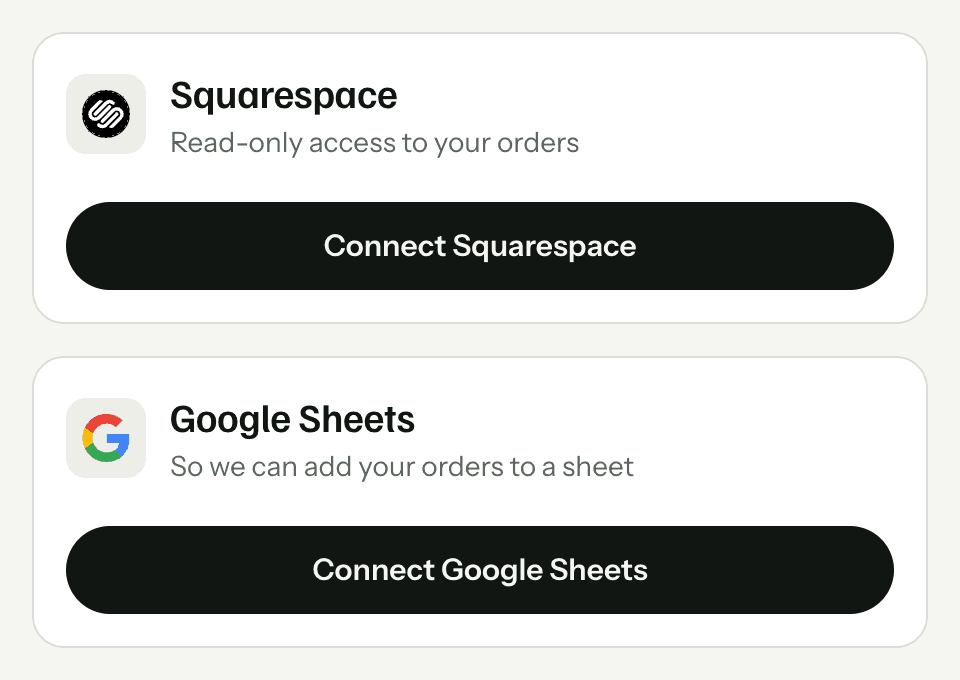
- Name the workflow, check your Squarespace store, and leave What to sync on Orders.
- Under Destination, pick the Spreadsheet and the Sheet (the tab) for your orders. Use a sheet you keep just for SuperJack.
- Click Create workflow.
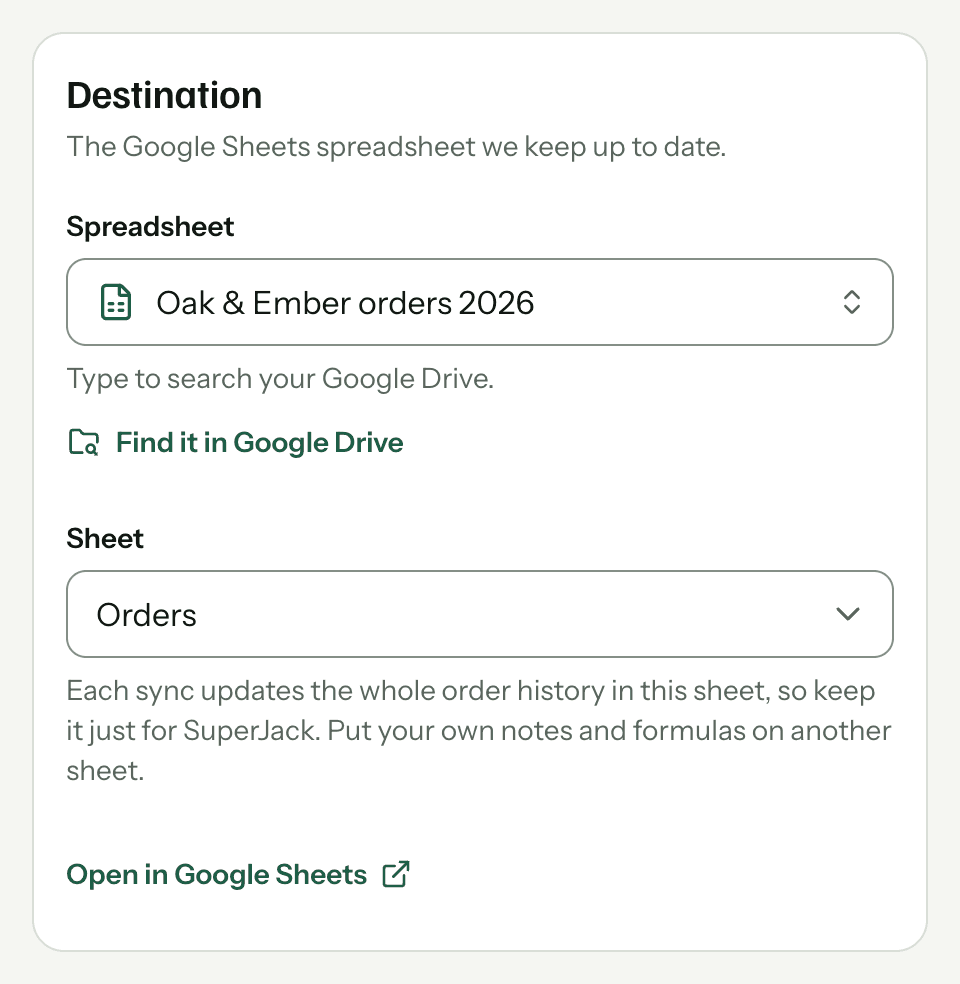
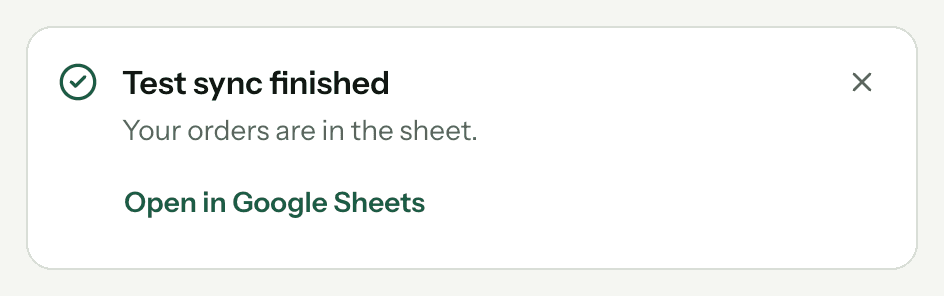
- Click Run a test sync. When you see Test sync finished, click Open in Google Sheets.
- Back in SuperJack, click Choose a plan and start your 3-day free trial. Hourly syncing starts with it.
Our step-by-step setup guide walks through every screen, plus the optional settings: hiding columns, date and product filters, and putting the oldest orders first.
What you get in the sheet
- One row per item ordered. An order with three products is three rows, with the order number, date, customer and totals repeated on each, like Squarespace's own CSV export. That makes it easy to sort, filter and count products.
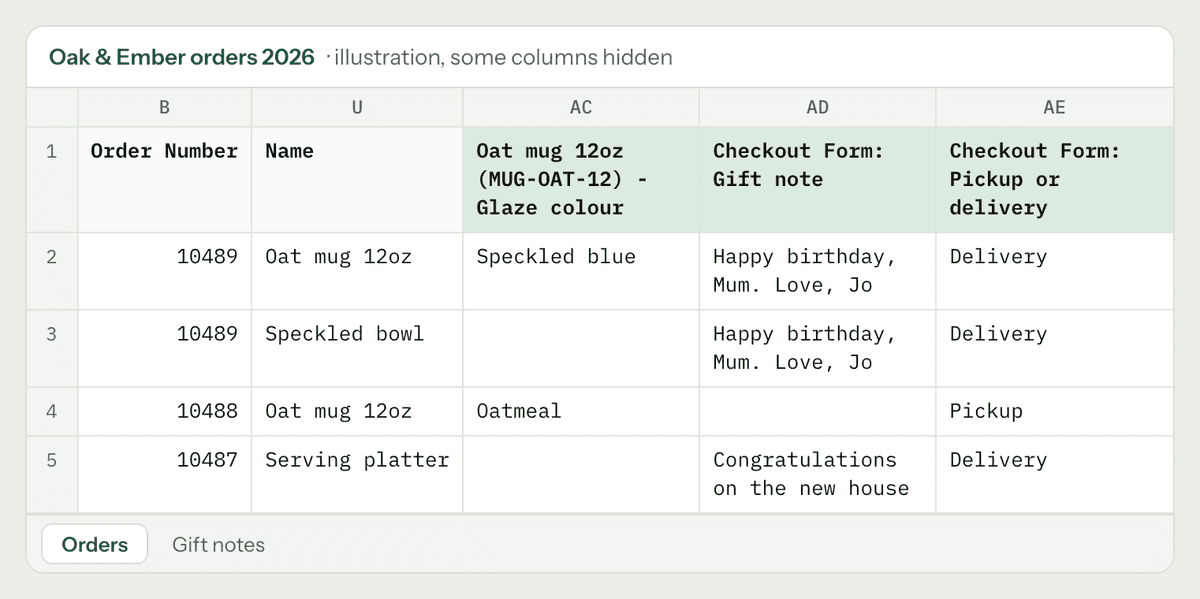
- Every custom form answer in its own column. Each checkout form question gets a column named
Checkout Form: <question>, and each product form question gets one too. More in our post on custom form answers in Google Sheets. - Your whole order history, always current. SuperJack syncs every hour, and each sync updates the whole order history: past orders as well as new ones. So when you mark an order fulfilled, refund it or add an internal note, the sheet catches up within the hour. There are never duplicate rows, and orders from before you signed up are there from the first sync.
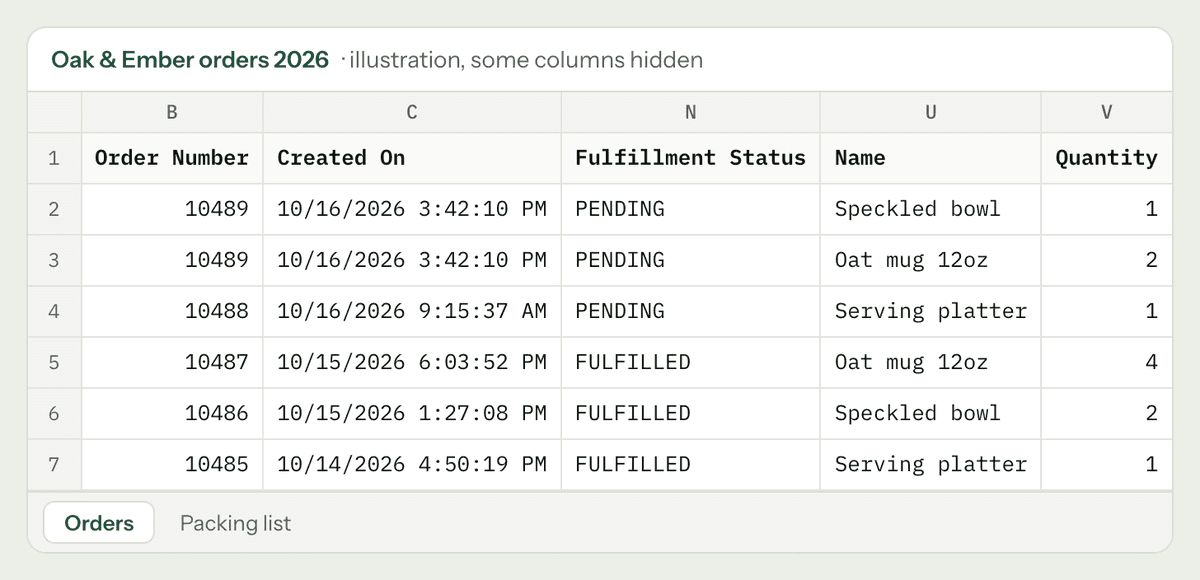
An illustration of the sheet, with some columns hidden to fit.
One thing to know: SuperJack keeps the synced sheet matching your store, so anything you type into it is replaced on the next sync. Keep your own notes, formulas and charts on another sheet (tab) that reads from it, like a packing list of unfulfilled orders or sales reports with pivot tables.
Send Squarespace form submissions to Google Sheets
For contact forms, booking requests, sign-up forms and newsletter blocks, you don't need SuperJack or any other tool. Squarespace can store form submissions in a Google Sheets spreadsheet in your Google Drive. These steps follow Squarespace's guide to setting up form and newsletter storage.
- In the Pages panel, open the page with your form and click Edit.
- Click the form block, then click the pencil icon on the block.
- Open the form's storage options (the Storage tab) and click Connect next to Google Drive.
- Sign in to your Google account and click Allow to give Squarespace permission to connect to Google Drive.
- Enter a Spreadsheet Name. Squarespace creates a new spreadsheet for this form's submissions.
- Save the page, then send a test submission and check the spreadsheet in Google Drive.
Newsletter blocks and promotional pop-ups can store sign-ups in Google Drive the same way.
Limits worth knowing
Squarespace's help documents a few rules for Google Drive storage. They're easy to trip over, so here they are in one place:
- It always makes a new spreadsheet. You can't connect a form to an existing spreadsheet, to a spreadsheet in a shared drive, or to a specific tab (Squarespace).
- Don't rename the spreadsheet. Renaming it disconnects it from your site.
- Don't rename the columns. The column headers must match the form's fields. If you rename a column, that field arrives blank (troubleshooting form issues). Squarespace also recommends avoiding special characters such as å or ö in field titles.
- Each field is one column. A name field with first and last name boxes lands in one cell. For separate columns, use two text fields.
- Up to 50 forms per Google account. Connecting a 51st form disconnects the oldest one.
Because the connection sometimes needs resetting, Squarespace has a whole article on reconnecting forms to Google Drive. After Google changed how Drive connections work, Squarespace asked site owners to reconnect every form that stores submissions in Google Drive, or Drive would stop receiving them. Reconnecting creates a new spreadsheet, so older submissions stay in the old one.
If you need submissions added to a spreadsheet you already have, Squarespace also offers Zapier as a form storage option on Core, Plus and Advanced plans, and Zapier can add a row to any Google Sheets spreadsheet.
Checkout form answers are different
Answers to your checkout form and product (Add to cart) forms aren't form block submissions. They're part of the order, so they arrive with your orders. SuperJack gives every one of those questions its own column. See how to get Squarespace custom form answers into Google Sheets.
Connect Squarespace products and stock to Google Sheets
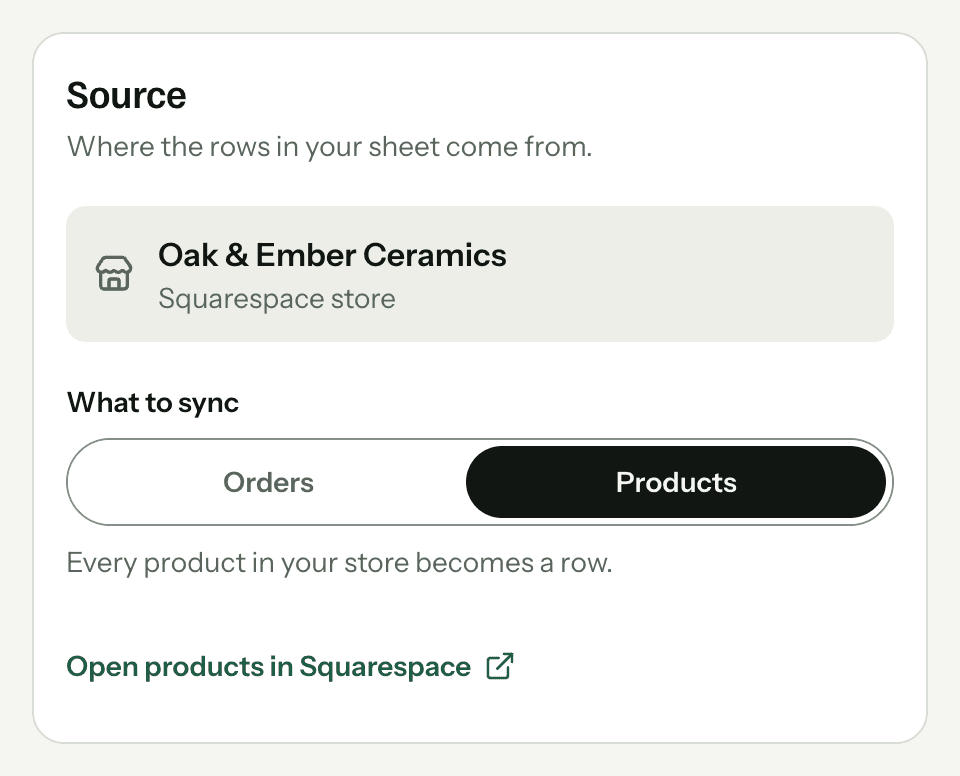
SuperJack can also sync your product list, with prices and stock levels, to its own sheet. Create a second workflow and choose Products under What to sync:
- In SuperJack, click New workflow.
- Under What to sync, choose Products.
- Pick the spreadsheet and a new, empty sheet, for example one called
Products. - Click Create workflow, then Run a test sync.
Each variant gets its own row, with columns such as Name, Variant SKU, Variant Price (Base) and Variant Stock Quantity. Like orders, the sheet syncs every hour. Keep it in the same spreadsheet as your orders and you can match the two by SKU: our guide to tracking Squarespace stock levels in Google Sheets builds a low stock list that also shows how many of each item sold in the last 30 days.
Show a Google Sheet on your Squarespace site
Sometimes "connect" means the other direction: you want a table from Google Sheets to appear on a Squarespace page, such as a price list, a class timetable or a results table. You can publish the sheet from Google Sheets and paste its embed code into a Squarespace code block.
- In Google Sheets, click File > Share > Publish to web (Google's guide).
- Click Embed, choose the entire spreadsheet or a single sheet, and click Publish.
- Copy the code in the text box.
- In Squarespace, edit the page, click Add block or +, and choose Code (Squarespace's code block guide).
- Click the pencil icon on the code block, paste the code and save the page.
A few things to check first:
- Your plan. The embed code is an iframe, and Squarespace says adding JavaScript or an iframe to a code block needs a Core, Plus or Advanced plan.
- It updates on its own. Google says changes to the spreadsheet carry over to the published version, though it can take a few minutes.
- Publish only what visitors should see. A published sheet can be seen by anyone with the link. Never publish a sheet with customer names, emails or addresses. If you want to show stock from SuperJack, build a separate sheet that pulls just the product name and quantity, and publish that one.
Other ways to connect Squarespace to Google Sheets
SuperJack isn't the only way to get orders into a sheet. Here's how the common options compare. Our comparison of Zapier, Squarespace's export and SuperJack goes into each one in detail, with sources and a cost estimate for 300 orders a month.
Features and prices checked October 2026.
| What it moves | Past orders | Status updates | Setup | Cost | |
|---|---|---|---|---|---|
| Manual CSV export | Orders, as a file you download and import | Yes, as a snapshot | No, download again | A few clicks, every time | Included |
| Squarespace auto-export to Google Drive | New orders, within an hour | Described for new orders; download a CSV for older ones | Not updated after the order is added | A few clicks in Orders | Included in Core, Plus and Advanced plans |
| Zapier | New orders as they happen, plus transactions and profiles | Starts with orders placed after you turn the Zap on | Possible with a second Zap that finds and updates the row | Build and map one or two Zaps | Paid plan for most stores, priced by tasks |
| Make | Orders, products and transactions, through Watch triggers | Depends on how you build the scenario | Possible with Update a Row steps you build | Build and map a scenario | Free plan with 1,000 credits a month; paid plans by credits |
| SuperJack | Orders (one row per item, form answers in columns) and products with stock | Included from the first sync | Updated on every hourly sync | About two minutes | $19 a month, or $12 a month billed yearly |
Manual CSV export. In Squarespace, open Orders and click Export data to download your orders as a CSV, then import it into Google Sheets. It's free and good for a one-off look at your history, but it's out of date as soon as the next order arrives.
Squarespace's auto-export. From the same Export data menu, Auto-Export Orders connects Google Drive, and Squarespace adds new orders to a spreadsheet within an hour. It's built in on Core, Plus and Advanced plans, but Squarespace says auto-exported orders don't update when an order's status changes (Squarespace's export guide).
Zapier. A Zap with Squarespace Commerce's New Order trigger and Google Sheets' Create Spreadsheet Row adds a row the moment an order comes in, and Zapier can send the same order to thousands of other apps. Keeping rows current takes a second Zap, and costs grow with your order count. You can also use SuperJack and Zapier together.
Make. Make has Squarespace triggers such as Watch Orders and Watch Products, and Google Sheets actions such as Add a Row and Update a Row (Make's Squarespace and Google Sheets integration). Like Zapier, it's flexible, and you build and maintain the scenario yourself.
SuperJack. One sheet that always matches your store, with no building. It syncs hourly rather than instantly, and it only works with Google Sheets.
Questions
Can Squarespace connect to Google Sheets for free?
Partly. Squarespace form blocks and newsletter blocks have a built-in Google Drive storage option that sends submissions to a spreadsheet, and on Core, Plus and Advanced plans Squarespace can auto-export new orders to Google Drive. Neither keeps past orders or order status up to date. For that you need a tool such as SuperJack, which costs $19 a month, or $12 a month billed yearly, after a 3-day free trial.
How do I send Squarespace form submissions to Google Sheets?
Edit the page, click the form block and click the pencil icon. In the form's storage options, click Connect next to Google Drive, sign in to Google, click Allow and enter a spreadsheet name. Squarespace creates a new spreadsheet in your Google Drive for that form's submissions. You can't pick an existing spreadsheet.
Can I get past Squarespace orders into Google Sheets?
Yes. You can download a CSV of past orders from Orders in Squarespace and import it, but it won't change after that. SuperJack's first sync brings in your whole order history, and each sync after that updates the whole order history, so older orders stay current too.
Does the sheet update automatically?
It depends on the method. Squarespace's form storage sends each new submission to its spreadsheet. Squarespace's order auto-export adds new orders within an hour, but doesn't update them when their status changes. SuperJack syncs every hour and each sync updates the whole order history, so fulfilment status and refunds stay current. A downloaded CSV never updates.
Why did my Squarespace form stop sending to Google Sheets?
After Google changed how Drive connections work, Squarespace asked site owners to reconnect every form that stores submissions in Google Drive, or Drive stops receiving them. Renaming the spreadsheet also disconnects it, and renaming a column makes that field arrive blank. To fix it, disconnect and reconnect Google Drive in the form's Storage tab. Squarespace says reconnecting creates a new spreadsheet.
Can I connect more than one sheet?
Yes. SuperJack syncs up to 10 sheets on either plan, for example orders in one sheet and products and stock in another. For forms, Squarespace makes one spreadsheet per form, and you can connect up to 50 forms to one Google account.
Does SuperJack send Squarespace form block submissions to Google Sheets?
No. SuperJack syncs orders, including checkout and product form answers, and products. For contact forms, sign-up forms and newsletter blocks, use Squarespace's own Google Drive storage.
Start syncing your orders
If you sell on Squarespace, the sheet you'll use most is the one with your orders in it, and SuperJack sets that up in about two minutes: every order, one row per item, every custom form answer in its own column, and each hourly sync updates the whole order history. If you get stuck, use Get help in your SuperJack dashboard and a real person will help.
Start your free trial. It's free for 3 days, and you can cancel any time.