5 min read
How to get Squarespace custom form answers into Google Sheets
Gift notes, pickup or delivery, engraving text: give every checkout form and product form question its own column in Google Sheets, kept up to date every hour.

Tristan Tsvetanov
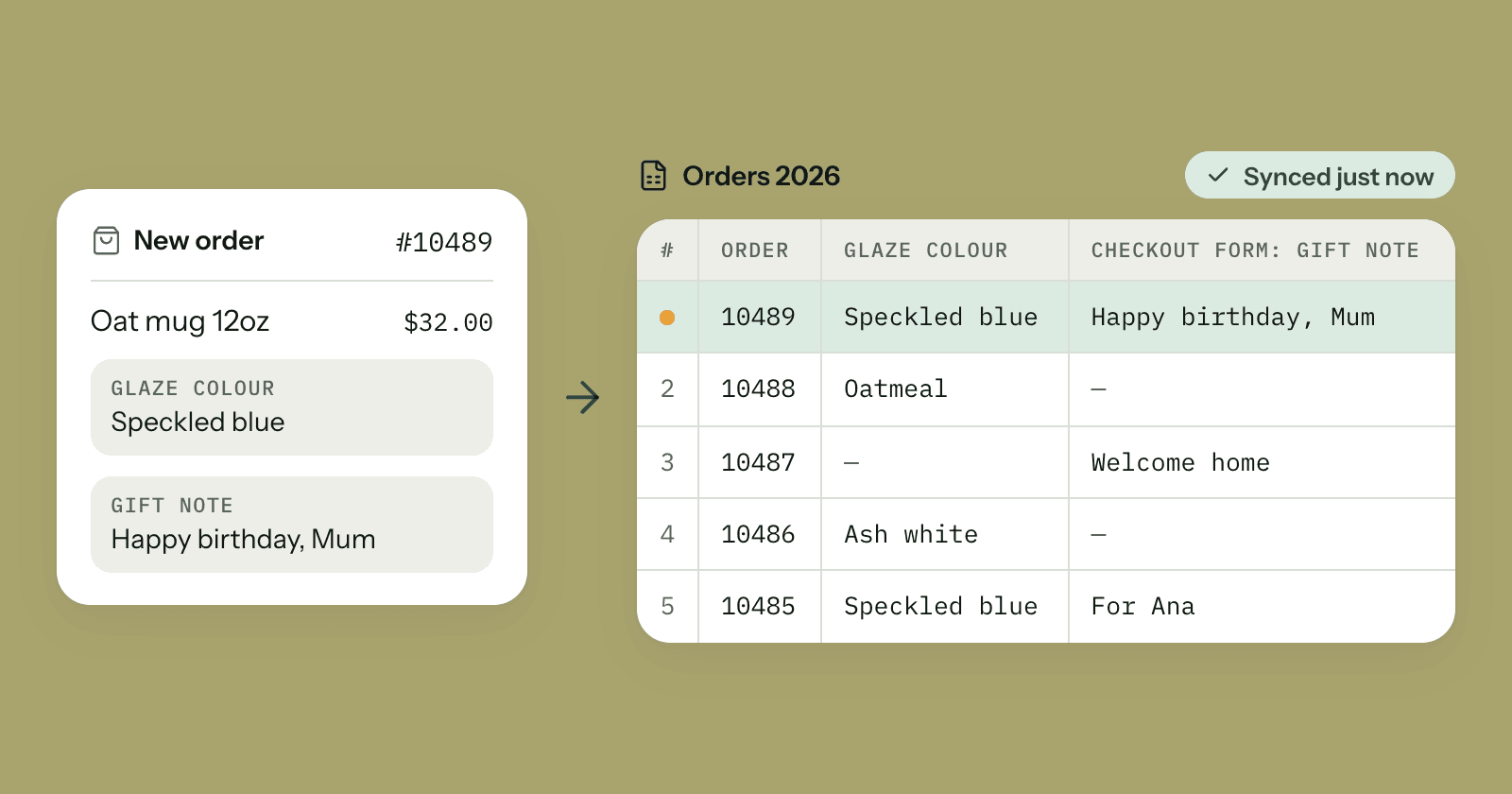
This guide is for Squarespace stores that ask customers questions: a gift note or pickup or delivery at checkout, engraving text or a glaze colour on a product. Squarespace keeps those answers on each order, but getting them into a spreadsheet you can sort, filter and share takes some work. By the end you'll have a Google Sheet where every question has its own column, kept up to date every hour.
Squarespace's two kinds of forms
Squarespace has two places to ask customers questions:
- Custom checkout form. One form for the whole order, shown to every customer at checkout. It suits questions about the order as a whole: a gift note, pickup or delivery, the date of an event. See Squarespace's guide to creating a custom checkout form.
- Add to cart form. A form attached to a product, which appears when a customer adds that product to their cart. It suits questions about one item: personalisation, engraving text, a glaze colour. Squarespace's help calls it an Add to cart form; in SuperJack and in this post we also call it a product form. See create an Add to cart form.
This post is about answers that come with orders. Contact forms and other form blocks on your pages are a different thing: they can go straight to Google Sheets through Squarespace's own form storage, which we cover in how to connect Squarespace to Google Sheets.
Why they're awkward in the CSV export
Squarespace's order export does include form answers, with each field in its own column. The catches are elsewhere:
- Product form answers only come with single-product exports. Squarespace includes Add to cart form responses only when you export the orders for one specific product. If three of your products have forms, that's three downloads to stitch together.
- A CSV is a snapshot. It's out of date as soon as the next order arrives or an order is fulfilled, so you download it again, and again.
- Squarespace's automatic export doesn't keep up with changes. Its Google Drive export adds new orders, but Squarespace says auto-exported orders don't update when an order's status changes.
How SuperJack lays out form answers
SuperJack syncs your orders to a sheet every hour, with one row per item ordered. Each sync updates the whole order history, so new orders arrive, older orders stay current and form answers from your first order onwards are included. Custom form answers come across like this:
- Every checkout form question gets its own column, named
Checkout Form:followed by the question's label. For exampleCheckout Form: Gift noteandCheckout Form: Pickup or delivery. - Every product form question gets its own column, named after the product, its SKU and the question's label. For example
Oat mug 12oz (MUG-OAT-12) - Glaze colour. If two products ask the same question, each product gets its own column. - Two combined columns hold all the answers in one cell, the way you'd read them in Squarespace:
Checkout Custom Formfor the checkout form andProduct Custom Formfor the item's product form. A combined cell looks likeGift note: Happy birthday, Mum. Love, Jo, Pickup or delivery: Delivery,
Because there's one row per item, checkout form answers repeat on every row of the order. Product form answers only appear on the row for the item they belong to.
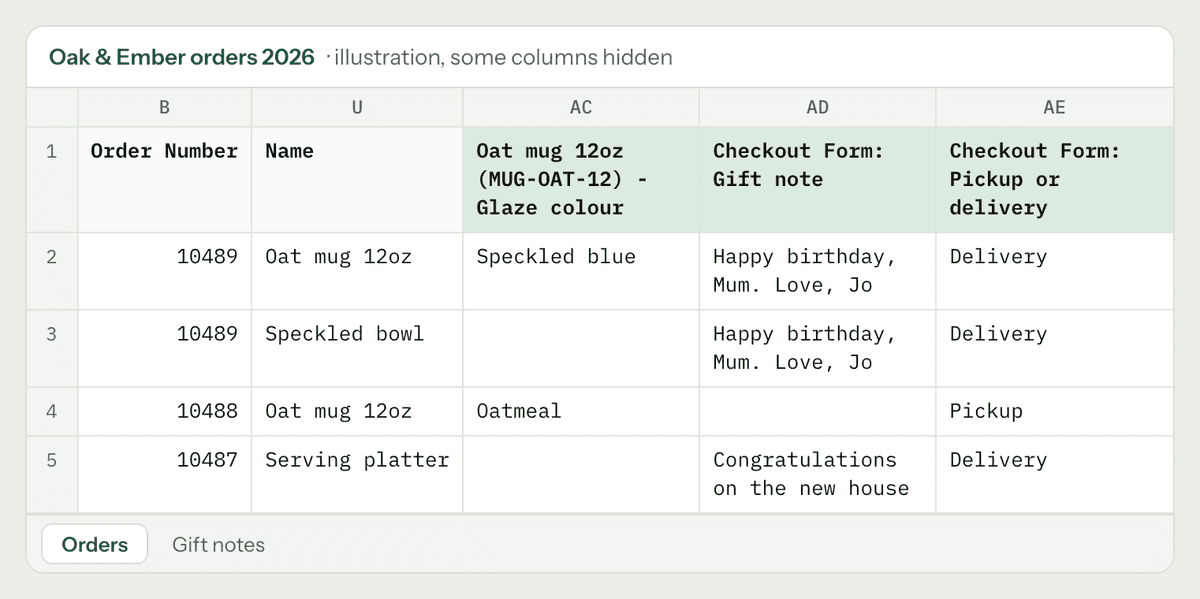
An illustration of the sheet, with some columns hidden to fit.
You don't have to set anything up to get these columns. If you haven't connected your store yet, follow our step-by-step setup guide and the form columns arrive with the first sync. If you add a new question later, open your workflow and click Refresh columns after someone has answered it.
Tips
Hide the combined columns
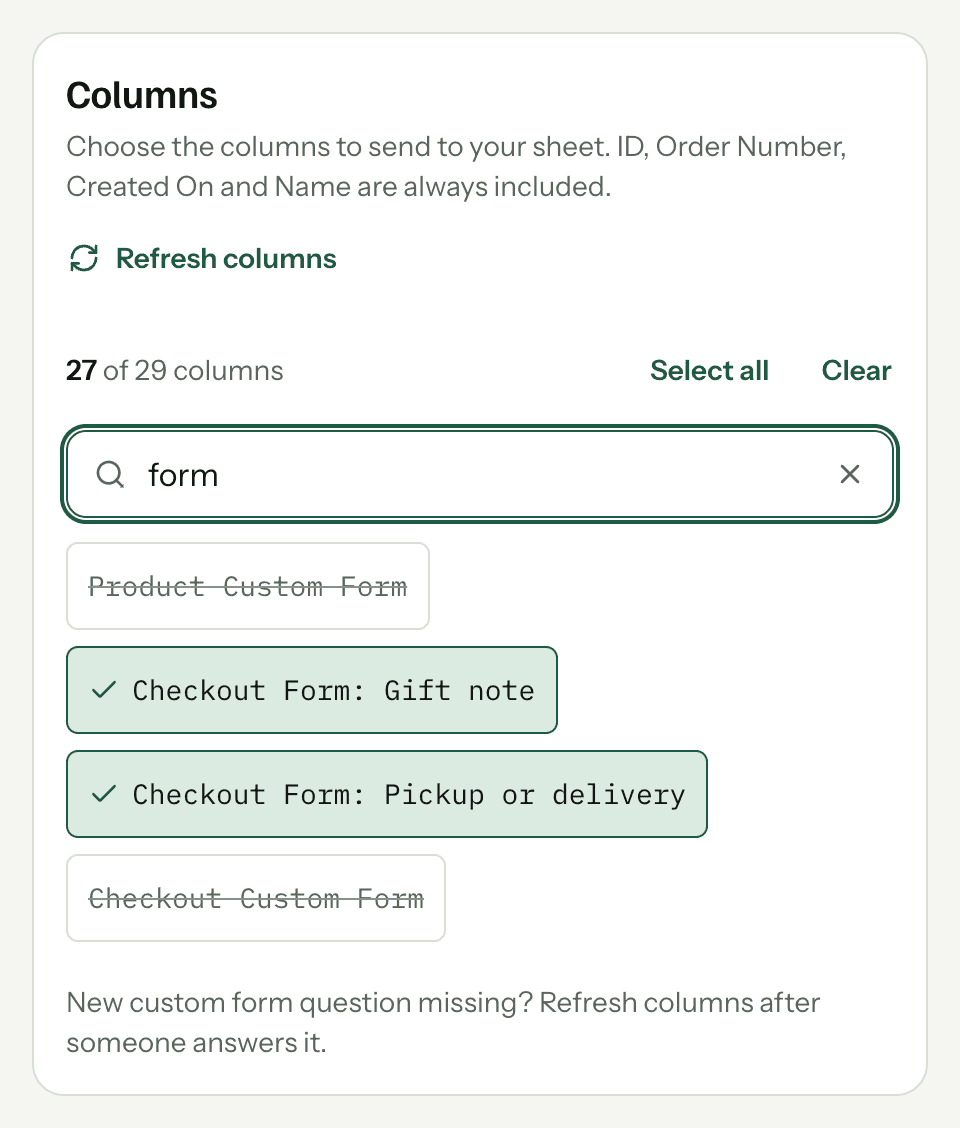
If you only want the separate columns, open your workflow from the dashboard and go to Columns. Untick Checkout Custom Form and Product Custom Form, then click Save. Typing "form" in Find a column narrows the list down. Changes apply from the next sync.
Make a sheet just for personalised items
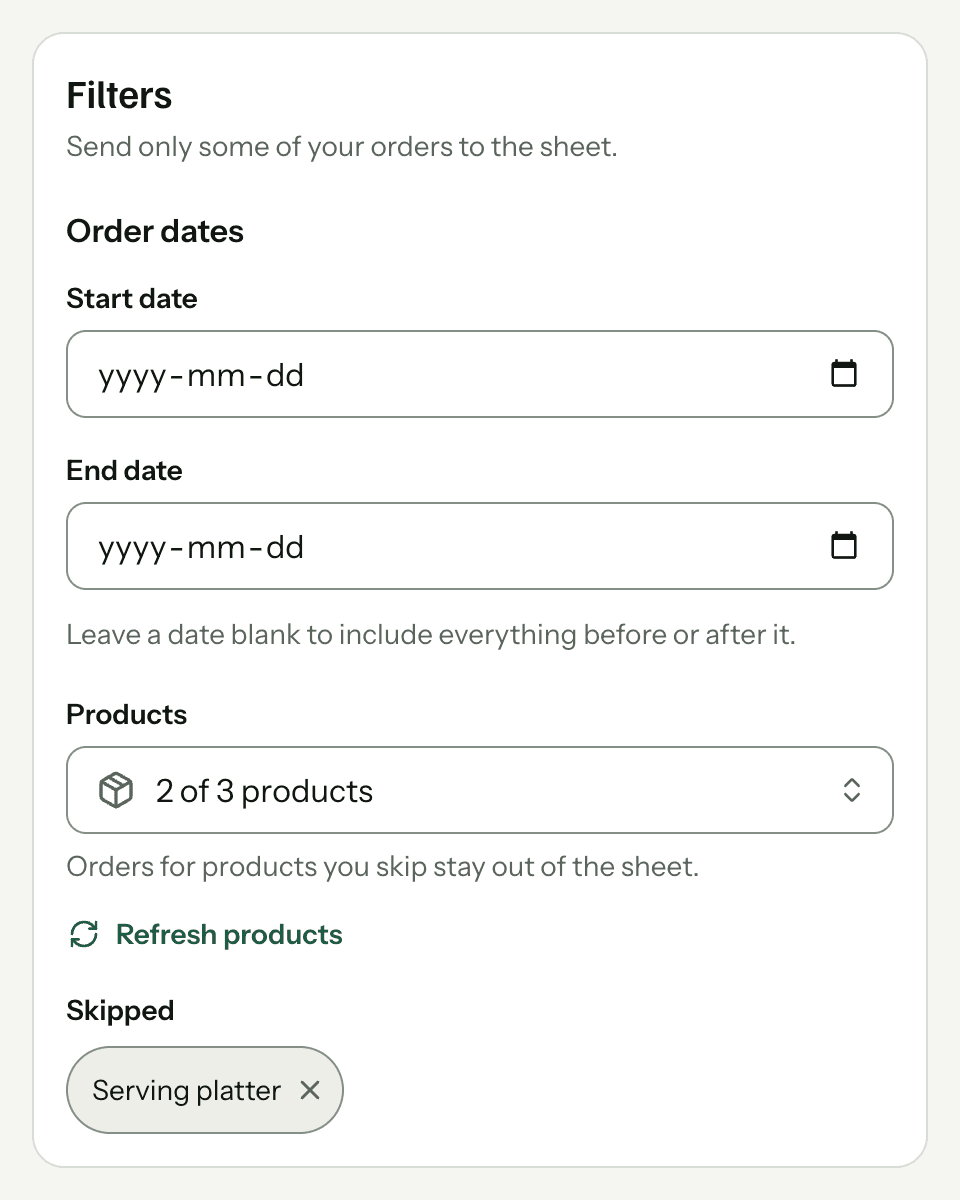
You can have up to 10 workflows, each keeping its own sheet up to date. To get a sheet of only the items with a product form:
- Add a new sheet (tab) to your spreadsheet, for example "Personalised".
- From your dashboard, click New workflow and choose that sheet under Destination.
- Under Filters, open Products and untick the products that don't have a form.
- Click Create workflow.
Rows for the products you skip stay out of that sheet, so your engraving or glaze list only shows what needs making.
List only the orders with a gift note
SuperJack keeps the synced sheet matching your store, so anything you type into it is replaced on the next sync. Do this on another sheet (tab) in the same spreadsheet instead. Say your synced sheet is called Orders, Order Number is column B, Customer Email is column D and Checkout Form: Gift note is column AD. In cell A1 of your new sheet, enter:
=IFERROR(UNIQUE(FILTER({Orders!B2:B, Orders!D2:D, Orders!AD2:AD}, Orders!AD2:AD<>"")), "No gift notes yet")Here's what it does:
- FILTER keeps only the rows where the gift note isn't empty.
- UNIQUE removes repeats. An order with two items has two rows with the same gift note, and you only want it once.
- IFERROR shows "No gift notes yet" instead of an error when there are none.
A few things to check:
- Use your own column letters. Click a header in your synced sheet to see its letter. Columns can move when you add a form question, rename one or hide a column, so check the letters again after a change like that.
- If your sheet name has a space, put it in single quotes:
'Shop orders'!B2:B. - If you turned on Show the last sync time, your headers are on row 2, so start the ranges at row 3:
Orders!B3:B. - In some regions Google Sheets separates arguments with semicolons. If the formula shows an error, swap the commas between arguments for semicolons and the commas inside the curly braces for backslashes.
The same pattern works for any form question. Swap column AD for your Pickup or delivery column and you have a pickup list.
Renaming a form field
SuperJack names each column after the label that comes with each order's answer. So if you rename a question in Squarespace, say from "Gift note" to "Gift message", you can end up with two columns: the old name for orders placed before the change and the new name for orders placed after it. If you hid the old column, the new one will still show up until you untick it too. And if a formula uses that column, check its letter.
For more you can do with a second sheet, see how to make a packing list in Google Sheets.
Get your form answers into a sheet
Every checkout and product form question in its own column, updated every hour, with nothing to download. Start your free trial: it's free for 3 days, and setup takes about two minutes.