6 min read
Use SuperJack with Zapier
SuperJack keeps a complete, current order sheet in Google Sheets. Zapier can watch that sheet for new rows and send a Slack message, add a customer to your email list, or anything else. Here's how to set them up together.

Tristan Tsvetanov
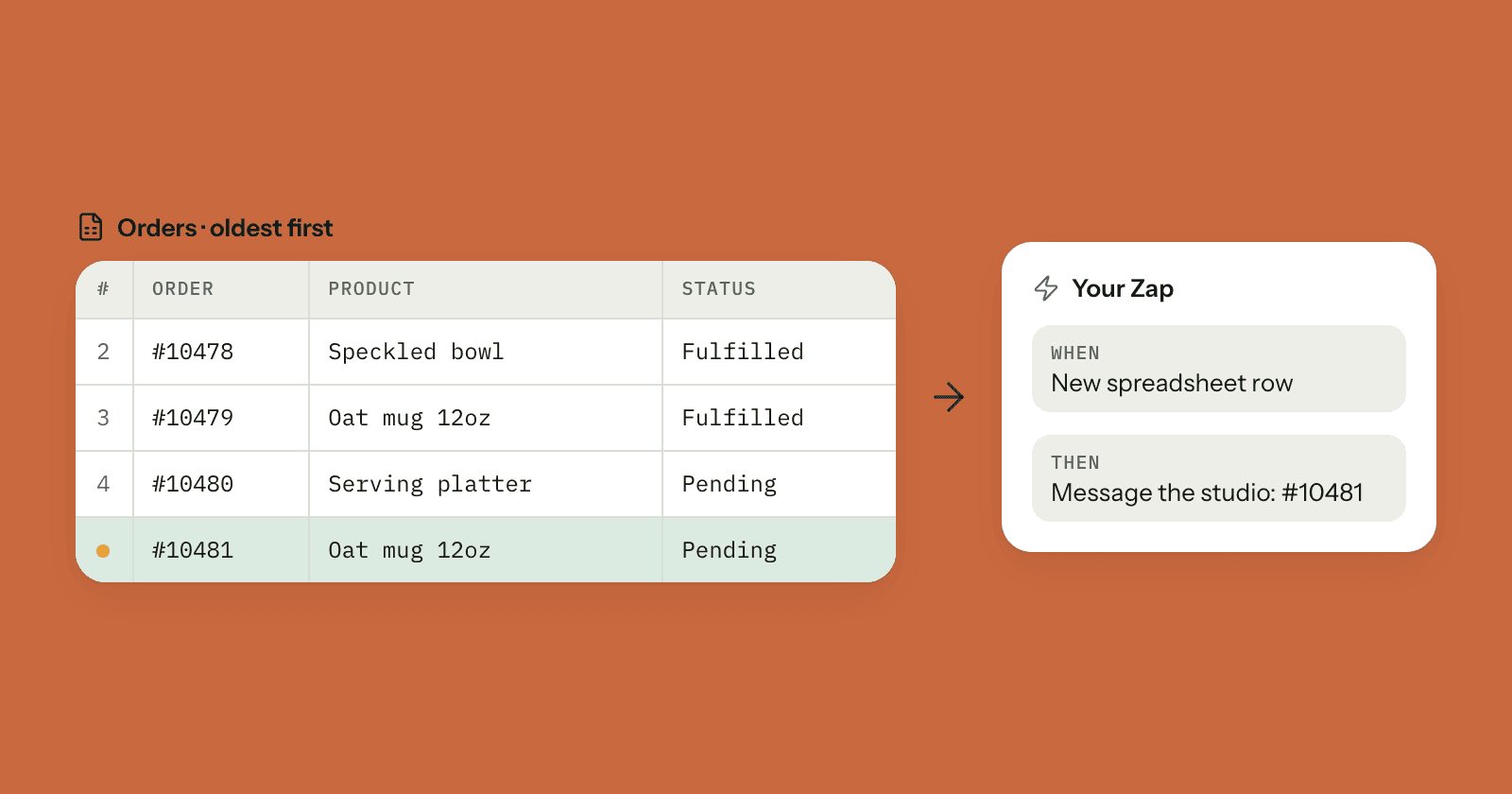
This guide is for Squarespace store owners who already use, or want to use, SuperJack and Zapier together. SuperJack keeps a complete, current sheet of your orders in Google Sheets. Zapier can watch that sheet and react when a new order row appears: post a message in Slack, add the customer to your email list, create a task. By the end you'll have SuperJack adding new orders at the bottom of your sheet and a Zap that runs for each one.
Why use them together
They do different jobs. SuperJack syncs your Squarespace orders into a sheet every hour, and each sync updates the whole order history, so fulfilment status and refunds stay current and every custom form answer has its own column. Zapier connects your sheet to thousands of other apps.
Zapier can also connect to Squarespace directly. If you're weighing that up, we compare the options in Zapier vs Squarespace's export vs SuperJack. Using the sheet as the starting point means your Zap sees the same tidy rows you do, including columns like Checkout Form: Gift note.
How Zapier spots a new order
Zapier's Google Sheets app has a New Spreadsheet Row trigger, and a New Spreadsheet Row (Team Drive) version. Zapier describes both as triggering when a new row is added to the bottom of a spreadsheet (Zapier's Google Sheets guide). Zapier keeps track of rows by their row number, and new rows only count when they're added at the bottom (why a Google Sheets Zap isn't triggering).
By default, SuperJack puts your newest orders at the top of the sheet, which is easiest to read but doesn't suit that trigger. That's what the Oldest orders first option is for.
What Oldest orders first does
With Oldest orders first on, SuperJack sorts your orders by order number from oldest to newest, so new orders go at the bottom of the sheet.
Each sync still updates the whole order history, and with this option every order keeps the same row from one sync to the next. A new order gets the next row below the last one, so it's the only thing that adds a row at the bottom. Existing rows can change in place, for example when an order is fulfilled, but they don't move.
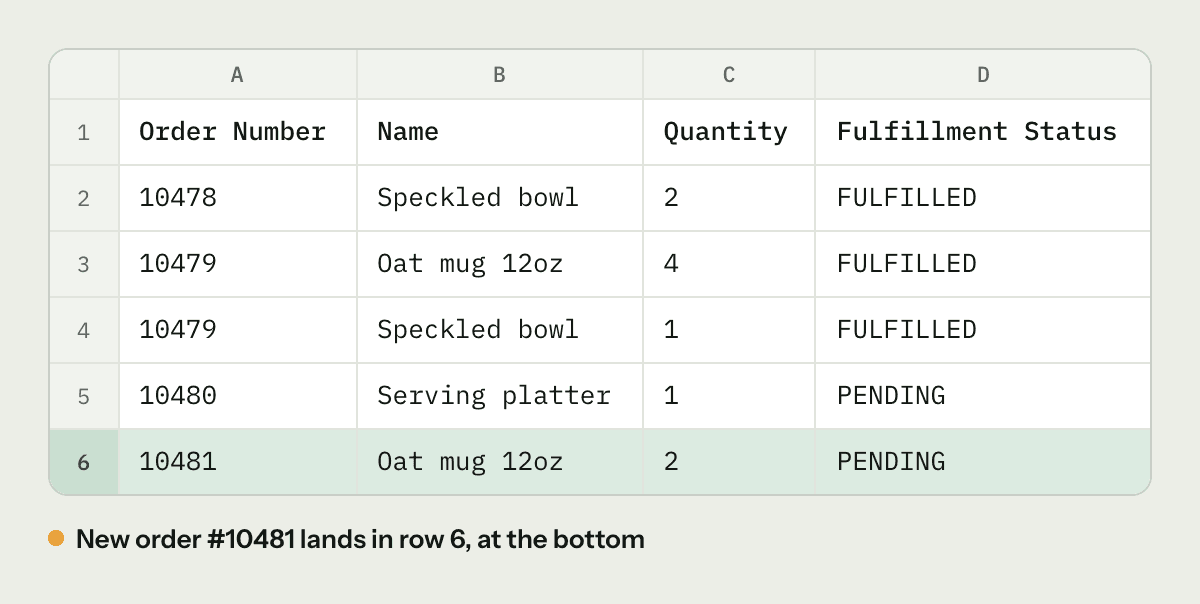
Remember that SuperJack writes one row per item ordered. An order with three products is three rows, so it triggers your Zap three times, once per item. That suits a per-item message ("2 × Oat mug 12oz for order 10481"). If you're adding customers to an email list, check how your email tool handles an address it already has. If you need exactly one run per order, test how your Zap behaves with a multi-item order before relying on it.
Step 1: Turn on Oldest orders first
- In SuperJack, open the workflow that syncs your orders, or create a new one. Use a sheet that only SuperJack writes to.
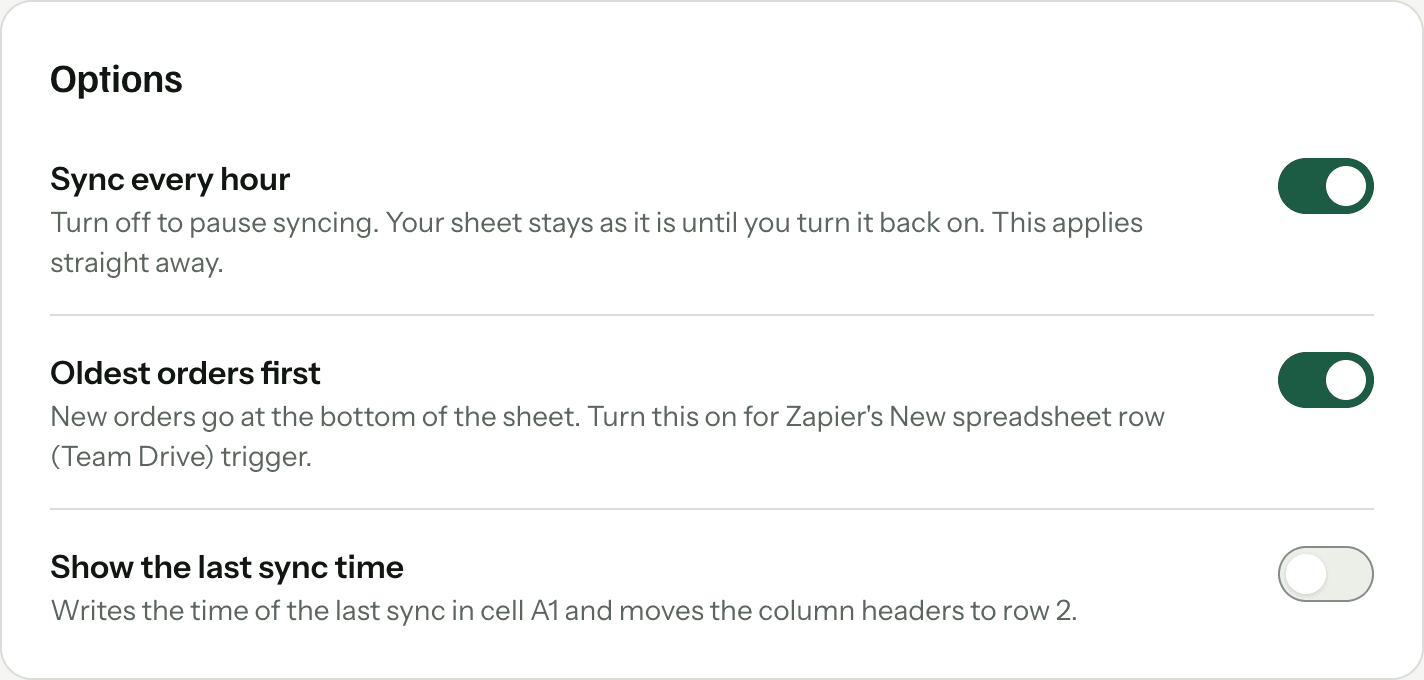
- Scroll to the Options card and turn on Oldest orders first.
- Leave Show the last sync time off for this sheet. When it's on, SuperJack writes the sync time in cell A1 and moves your column headers to row 2. Keeping it off means row 1 stays your header row, which keeps the fields simple to map in Zapier.
Step 2: Save and run a test sync
- Click Save.
- Click Run a test sync and open your sheet. Your oldest orders are now at the top and your newest at the bottom.

Do this before you build the Zap, so the sheet is already in its oldest-first order when Zapier first looks at it.
Step 3: Build the Zap
- In Zapier, create a Zap and choose Google Sheets as the trigger app.
- For the trigger event, choose New Spreadsheet Row (Team Drive), the one SuperJack's option names. If your spreadsheet doesn't appear for that trigger, try New Spreadsheet Row instead and test it the same way. Zapier notes the Team Drive version isn't instant, so a short delay is normal (Zapier's help article).
- Choose your spreadsheet and the sheet (Zapier calls it the worksheet) that SuperJack syncs to.
- Click Test trigger. Zapier pulls in a sample row, with fields named after your columns, like
Order Number,Customer Email,NameandQuantity. - Add your action. A few ideas:
- Slack: send a channel message with the order number, product name, quantity and the
Checkout Form: Gift noteanswer. - Your email tool: add or update a subscriber using
Customer Emailand the billing name columns. - Your task app: create a task to pack each item.
- Slack: send a channel message with the order number, product name, quantity and the
- Test the action, then publish the Zap.
A two-step Zap like this works on Zapier's Free plan, which includes 100 tasks a month. Each new row uses one task for the action (Zapier pricing; how tasks are counted). Remember that's one task per item, not per order.
Step 4: Check it with a test sync
Before you rely on the Zap, check that a sync without new orders doesn't set it off:
- With the Zap turned on, click Run a test sync in SuperJack.
- Wait a few minutes, then open the Zap's history in Zapier. If no new orders came in since the last sync, there should be no new runs.
- When your next real order arrives, check the history again after the next hourly sync. You should see one run for each item in that order.
If the Zap ran for orders it had already handled, or missed one, use Get help in your SuperJack dashboard and tell us what you saw. We'll help you sort it out.
Keep the rows where Zapier expects them
Because Zapier tracks rows by number, anything that moves rows around can confuse it. A few things to avoid on the synced sheet:
- Don't sort, insert or delete rows. Zapier says sorting and inserting rows can stop a Zap triggering or make it trigger on rows it already handled. SuperJack keeps that sheet matching your store anyway, so anything you type into it is replaced on the next sync. Keep your own notes, formulas and charts on another sheet (tab) that reads from it.
- Don't change the filters lightly. Changing the Start date, End date or product filter adds or removes older orders, which shifts every row below them. If you do, run a test sync and check your Zap history.
- Don't rename the sheet. Zapier says a renamed spreadsheet or worksheet can't be found by the Zap.
- Expect new columns for new form questions. If you add a question to a Squarespace form, a new column appears after someone answers it. Check your Zap's field mapping afterwards.
Start your free trial
SuperJack keeps the sheet complete and current, and Zapier takes it from there. If you haven't set up the sync yet, our step-by-step guide walks you through it, then come back here to turn on Oldest orders first. Start your free trial: it's free for 3 days and takes about two minutes to set up.