8 min read
Squarespace orders in Google Sheets: Zapier vs Squarespace's export vs SuperJack
Three ways to get Squarespace orders into Google Sheets, compared honestly: what each one does well, what to watch out for, and what each costs for a store with 300 orders a month.

Tristan Tsvetanov
This post is for Squarespace store owners who want their orders in Google Sheets and are deciding how. We make SuperJack, so we're not neutral, but we've tried to be fair: every claim about Zapier and Squarespace below links to their own documentation, and we say plainly where the other options are the better choice. By the end you'll know which of the three fits your store, and roughly what it costs at 300 orders a month. For forms, products and embedding a sheet on your site, see how to connect Squarespace to Google Sheets.
The three options in brief
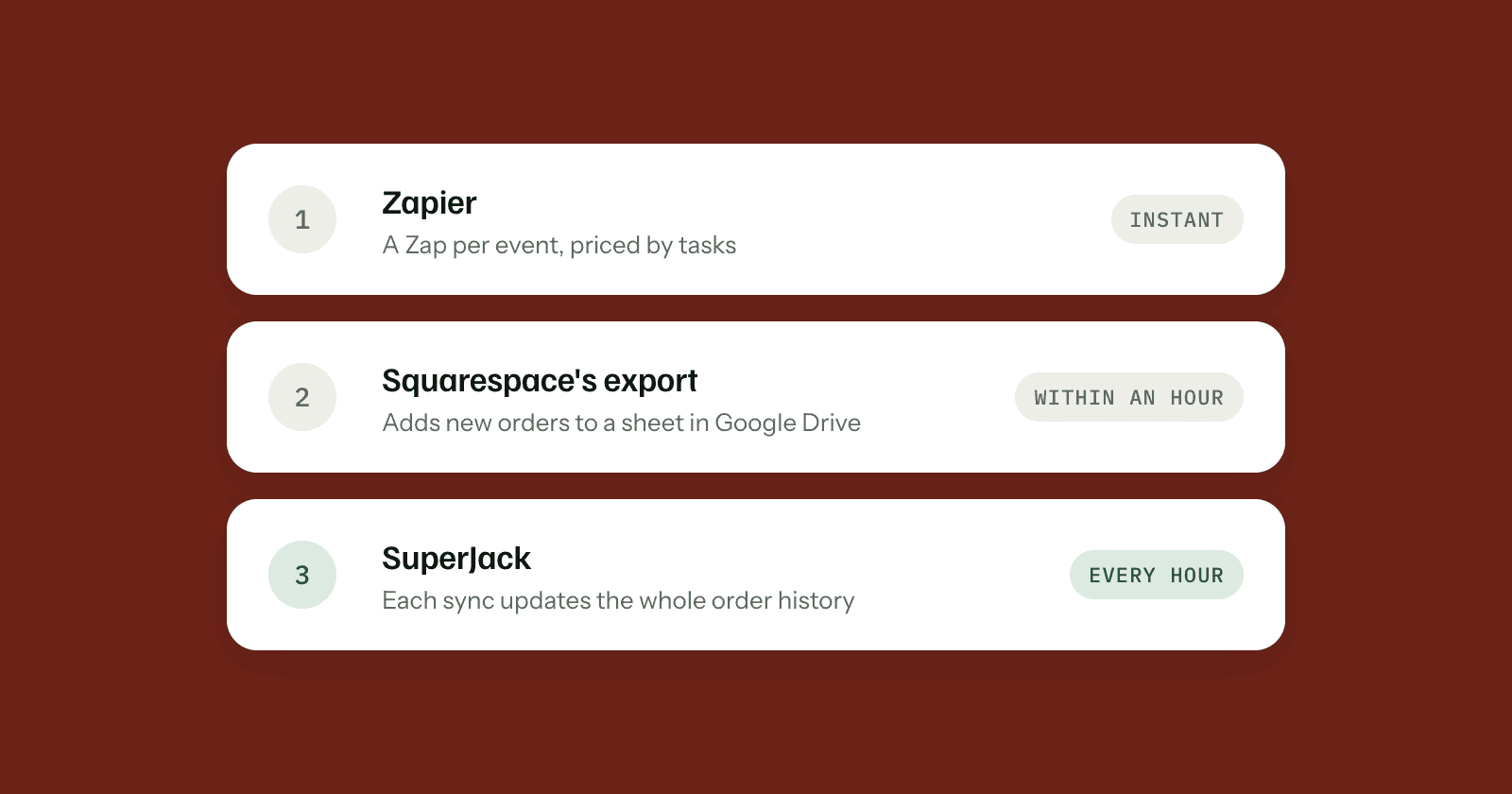
Zapier connects thousands of apps. You build a Zap that starts when a Squarespace order comes in and adds a row to a Google Sheets spreadsheet. It's instant and very flexible, and you pay by the number of tasks your Zaps use each month.
Squarespace's export is built in. On Core, Plus and Advanced plans you can turn on auto-export, and Squarespace adds each new order to a spreadsheet in your Google Drive within an hour. It costs nothing extra, but rows aren't updated when an order's status changes later.
SuperJack syncs your Squarespace orders into a Google Sheets sheet every hour. Each sync updates the whole order history, so past orders, fulfilment status and refunds stay current, with one row per item ordered and every custom form answer in its own column. It's a flat $19 a month, or $12 a month billed yearly.
Side by side
Prices and features checked October 2026. Sources are linked in each section below.
| Zapier | Squarespace's export | SuperJack | |
|---|---|---|---|
| How new orders arrive | Instantly, through the New Order trigger | Within an hour | Every hour, or straight away with Run a test sync |
| Past orders | A Zap starts with orders placed after you turn it on | Described for new orders; download a CSV for older ones | Included from the first sync |
| Status changes (fulfilled, refunded) | Possible with a second Zap that finds and updates the row | Not updated after the order is added | Updated on every sync |
| Orders with several products | One row per item with Looping or Create Multiple Spreadsheet Rows | Order details on the first row of each order only (per Squarespace's export docs) | One row per item, order details repeated on each |
| Custom form answers | Depends on the fields the trigger gives you and how you map them | Checkout form answers export with orders; product form answers in per-product spreadsheets | Every checkout and product form field in its own column |
| Products and stock | No product or inventory trigger or action (a beta API Request step only) | Not part of the order auto-export | A separate products export with prices and stock levels |
| Setup | Build and map one Zap, or two to keep rows current | A few clicks in Orders | About two minutes |
| Cost for 300 orders a month | About $19.99 to $73.50 a month, depending on setup (estimate below) | Included in Core, Plus and Advanced plans | $19 a month, or $12 a month billed yearly |
| Works with other apps | Thousands of apps | Google Drive | Google Sheets only (Zapier can pick up from there) |
Zapier
How it works
Zapier's Squarespace Commerce app has four triggers: New Order and Updated Order (both instant), and New Transaction and New Profile (both polling). It has one action, Create Contact, which adds a contact in Squarespace (Zapier's Squarespace Commerce integrations). Zapier lists Squarespace Commerce Basic or Commerce Advanced plans as the requirement (Zapier's getting started guide).
The simplest Zap is two steps: New Order in Squarespace Commerce, then Create Spreadsheet Row in Google Sheets. You map each order field to a column.
Good at
- Speed. New Order is an instant trigger, so a row can appear moments after checkout.
- Everything else. Zapier connects thousands of apps, so the same order can also post to Slack, start an email sequence and create a task, with filters and branching paths in between.
- More than orders. Triggers for transactions (including donations) and member profiles, and an action that creates contacts back in Squarespace.
Watch out for
- Orders with several products. One row per order is the default. For one row per item, Zapier's own template uses Looping by Zapier (template), or you can use Google Sheets' Create Multiple Spreadsheet Rows with line items (Zapier on line items). Looping is on paid plans only, is in beta, allows one loop per Zap and up to 500 iterations, and each action inside the loop uses a task per iteration (Understanding Looping by Zapier).
- Keeping rows current. A row added at checkout stays as it was. To reflect fulfilment, refunds or cancellations, you build a second Zap: Updated Order, then Lookup Spreadsheet Row, then Update Spreadsheet Row (Zapier's guide to finding and updating rows; Squarespace's order update events).
- Past orders. A Zap starts with orders placed after you turn it on. Older orders need a separate step (Zapier on transferring existing data).
- Products and stock. There's no product or inventory trigger or action in the Squarespace Commerce app, only a beta API Request step for people comfortable calling the API directly.
- Changing the sheet. Zapier's help docs note that renamed columns show up as missing fields (article), and that inserting or moving columns can send values to the wrong columns (article).
- Tasks add up. Each successful action uses a task. Triggers, Filter, Formatter, Paths and the Looping step itself are free, and a search step uses a task when it's set to continue even if nothing is found (how Zapier measures tasks).
Squarespace's export
How it works
In your Squarespace dashboard, open Orders, click Export data, then Auto-Export Orders, and connect Google Drive. You can send all orders to one spreadsheet, or make individual spreadsheets by product. New orders appear in Google Drive within an hour. Auto-export is available on Core, Plus and Advanced plans and some legacy plans (Squarespace's export guide).
Good at
- It's free and built in. No extra account or subscription.
- Set and forget for new orders. Once it's on, each new order is added without you doing anything.
- Form answers. Squarespace says checkout form answers export with every order, and the per-product spreadsheets include product (add to cart) form answers.
Watch out for
- Status changes. Squarespace says auto-exported orders don't update when an order's status changes. For current statuses you download a fresh CSV.
- Past orders. The guide describes auto-export for new orders. For your history, download a CSV of past orders by hand.
- Several products per order. Squarespace's export docs say order-level details, such as the order ID and shipping address, appear only in the first row for each order. Later rows for the same order show only the item details, which makes sorting and filtering harder.
- Form field names. Form fields with duplicate names don't export, so each field needs a unique name.
SuperJack
How it works
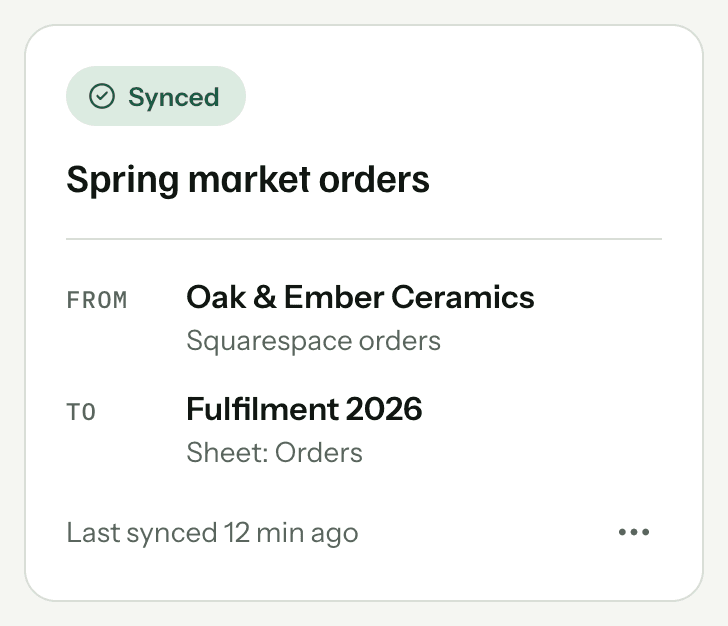
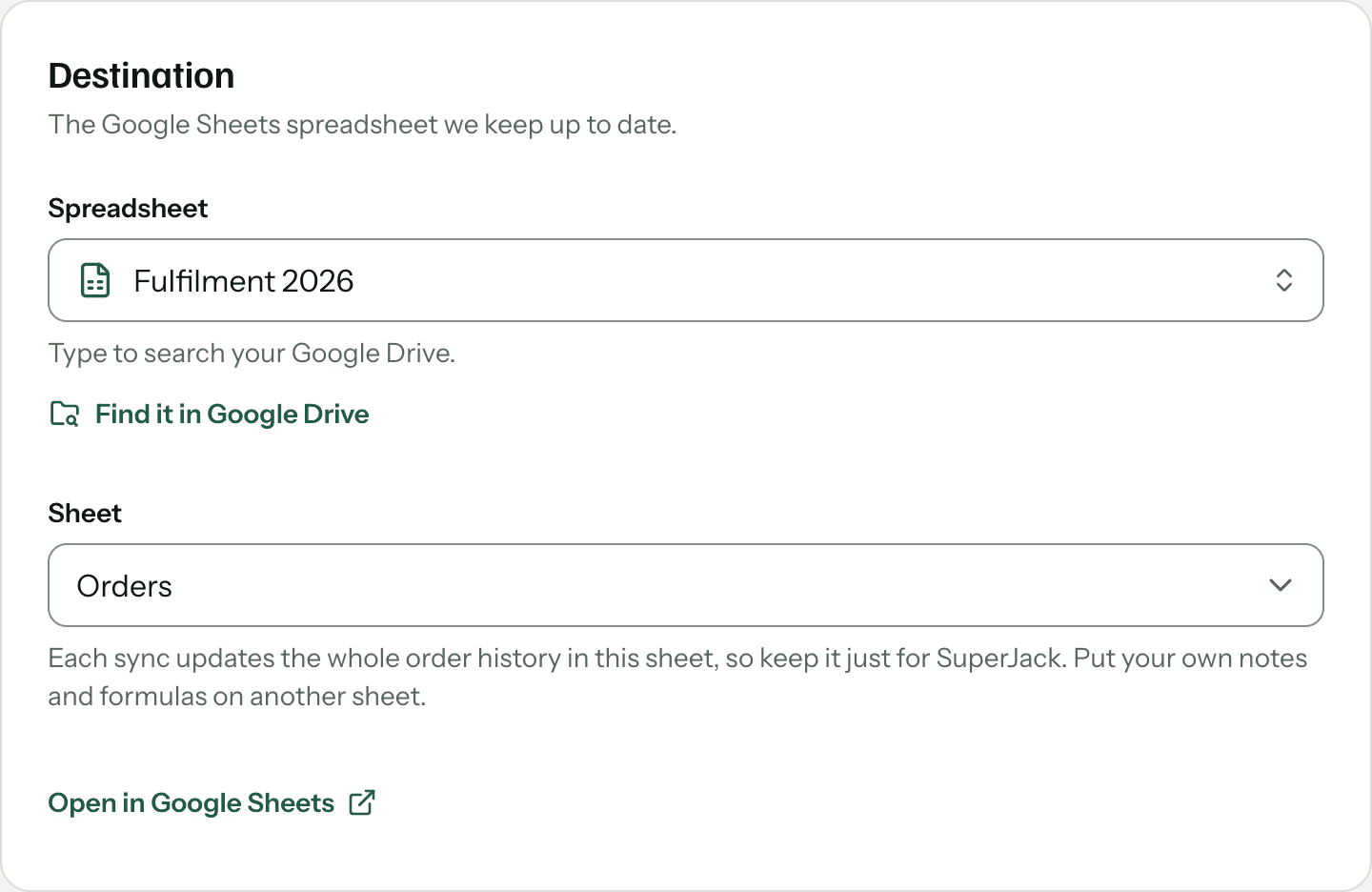
You connect your Squarespace store and your Google account, choose a spreadsheet and a sheet, and SuperJack syncs every hour. Each sync updates the whole order history: all past orders, not only new ones. You can see it straight away with Run a test sync. The full setup is in our step-by-step guide.
Good at
- A sheet you can trust. Because every sync updates the whole order history, fulfilment status, refunds and internal notes stay current, there are never duplicate rows, and older orders are there from the first sync.
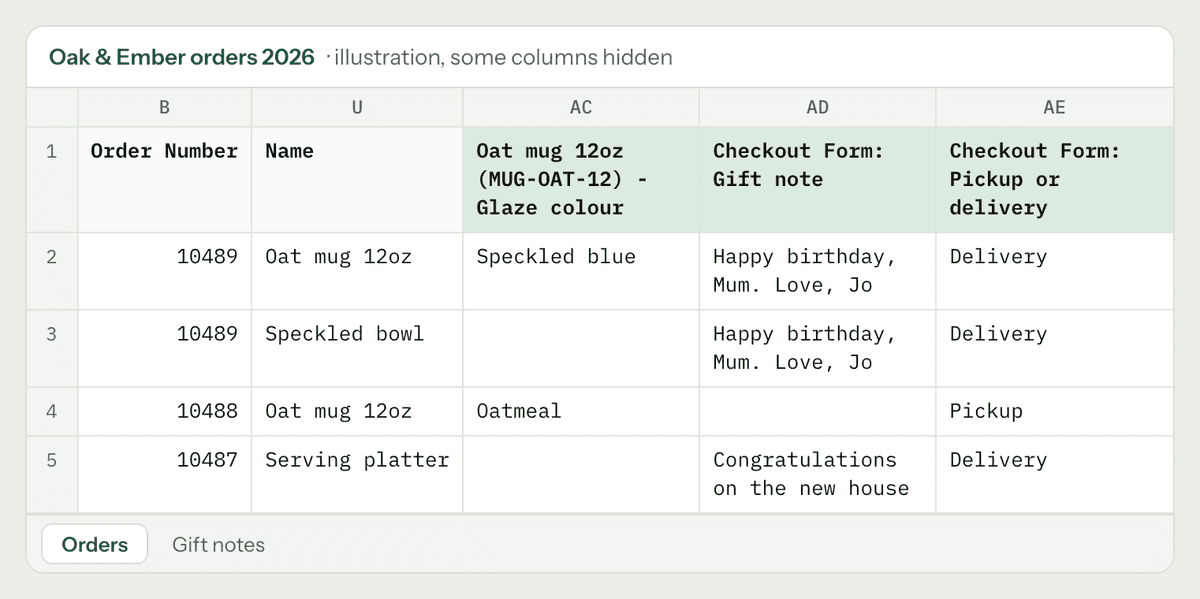
- One row per item. An order with three products is three rows, with the order details repeated on each, so you can sort, filter and count products without extra formulas.
- Custom form answers. Every checkout form field gets its own column, named
Checkout Form: <field label>, and every product form field gets one too. More in our post on form answers.
- Products and stock. A second kind of sync sends your product list with prices and stock levels, useful for tracking inventory.
- Flat price. $19 a month, or $12 a month billed yearly, whatever your order count, for up to 10 sheets.
Watch out for
- Hourly, not instant. A new order shows up at the next hourly sync, or when you click Run a test sync.
- Google Sheets only. SuperJack doesn't post to Slack or your email list itself. You can pair it with Zapier for that.
- The synced sheet is SuperJack's. SuperJack keeps that sheet matching your store, so anything you type into it is replaced on the next sync. Keep your own notes, formulas and charts on another sheet (tab) that reads from it, like a packing list.
What 300 orders a month costs
Here's a worked estimate for a store with 300 orders a month, using Zapier's pricing. Zapier's Free plan includes 100 tasks a month and two-step Zaps only, so 300 orders needs a paid plan. These are estimates, and your numbers depend on how you build your Zaps.
- A simple two-step Zap (New Order, then Create Spreadsheet Row) uses one task per order: about 300 tasks. That fits Zapier's Professional plan with 750 tasks, $19.99 a month billed yearly or $29.99 monthly.
- One row per item with Looping, assuming about two products per order, uses a task for each item: about 600 tasks. Still within 750.
- Keeping rows current with a second Zap (Updated Order, then Lookup Spreadsheet Row, then Update Spreadsheet Row) uses two tasks each time an order is updated. If each order is updated once or twice (fulfilled, sometimes refunded), that's another 600 or so. Together with the first Zap that's roughly 900 to 1,200 tasks, which needs the 2,000-task tier: $49 a month billed yearly or $73.50 monthly.
Squarespace's export costs nothing extra on Core, Plus and Advanced plans. SuperJack is $19 a month, or $12 a month billed yearly, whether you have 30 orders or 3,000.
When Zapier is the better choice
- You need orders in a sheet the moment they're placed, not within the hour.
- Your order data needs to go to other apps too, with conditions and branching, and you'd rather build it all in one place.
- You want to act on transactions, donations or member profiles, or create contacts back in Squarespace.
- You only need new orders added and don't mind building the Zap yourself.
When Squarespace's export is enough
- You only need a running list of new orders as they come in.
- You don't need the sheet to show later changes, like fulfilment or refunds.
- You're on a Core, Plus or Advanced plan and don't want another subscription.
When SuperJack fits
- You want one sheet that always matches your store: every order, past and new, with current status and refunds.
- You want one row per item and every custom form answer in its own column, without building anything.
- You'd like a predictable price that doesn't grow with your order count.
- Hourly is soon enough, and Google Sheets is where you work.
If that sounds like your store, start your free trial. It's free for 3 days, takes about two minutes to set up, and you can cancel any time. Questions along the way? Use Get help in your dashboard and a real person will get back to you.