7 min read
Track your Squarespace stock levels in Google Sheets
Sync your Squarespace products and stock to Google Sheets, then build a low stock list that colours itself and shows how many of each item sold in the last 30 days.

Tristan Tsvetanov
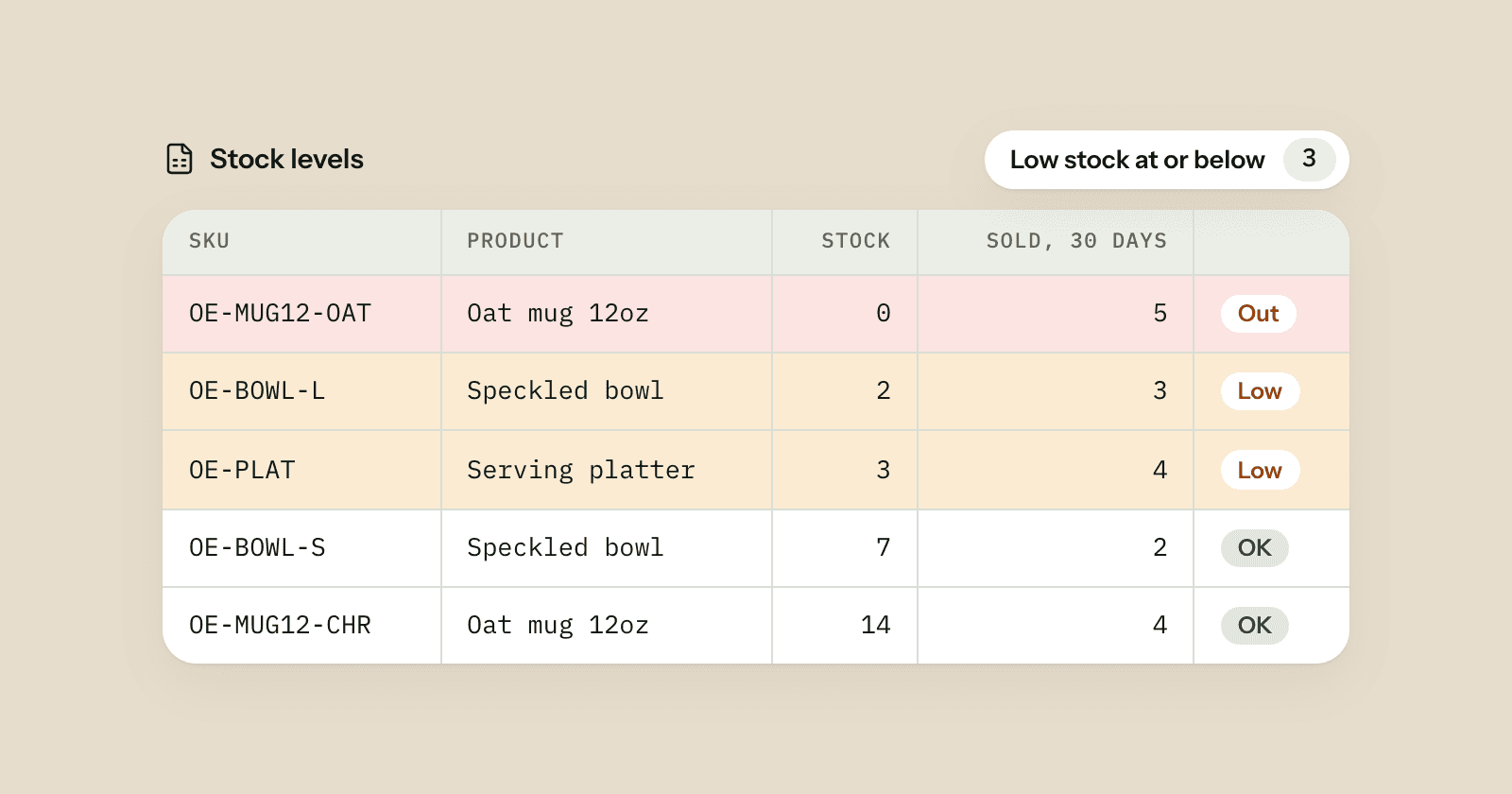
This guide is for Squarespace sellers who make or restock things in small batches and want to see what's running low before it sells out. By the end you'll have your products and stock levels in Google Sheets, kept up to date every hour, plus a Low stock sheet that lists every variant at or below a number you choose, coloured by how urgent it is, with how many of each sold in the last 30 days.
Step 1: sync your products
SuperJack can sync two things from Squarespace: orders, and your product list with prices and stock. You'll want one workflow for each, both in the same spreadsheet: one sheet for products, one for orders. If you already sync your orders, you only need to add the products workflow.
- In SuperJack, click New workflow.
- Under What to sync, choose Products.
- Choose the spreadsheet, then a new, empty sheet for it, for example one called
Products. - Leave Start date and End date empty. For products, those dates filter on the date each product was created, so leaving them empty keeps every product in the sheet.
- Click Create workflow, then Run a test sync to fill the sheet straight away.
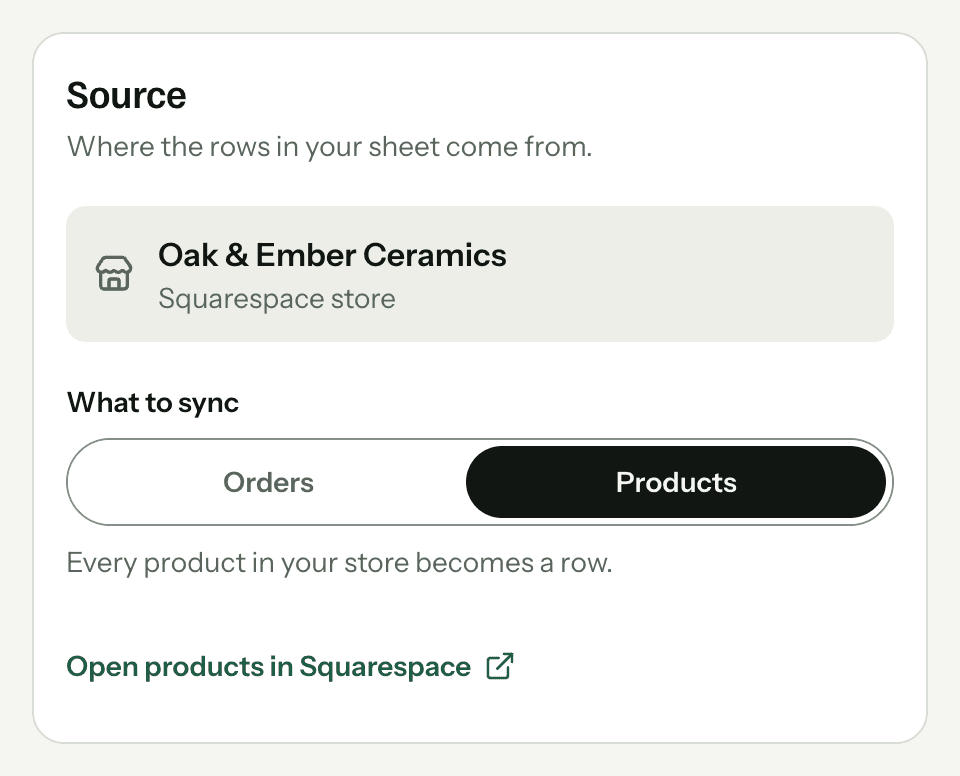
From then on SuperJack syncs the sheet every hour. Like the orders sheet, it keeps the products sheet matching your store, so anything you type into it is replaced on the next sync. Build your own views on another sheet (tab) that reads from it, as below.
What's in the products sheet
Each variant gets its own row. A mug that comes in two glazes takes two rows, with the product details repeated on each. These are the columns you'll use most:
- Name: the product name.
- Variant SKU: the variant's SKU, the code that links it to your orders.
- Variant Set Attributes: the variant's options, for example
Glaze: Oat,. - Variant Price (Base), Variant Price (Sale) and Variant On Sale.
- Variant Stock Quantity: how many you have.
- Variant Stock Unlimited:
TRUEfor variants set to unlimited stock.
There are more: description, tags, visibility, product page, shipping weight and dimensions, image links, and created and modified dates. You can switch off the ones you don't need in the column picker.
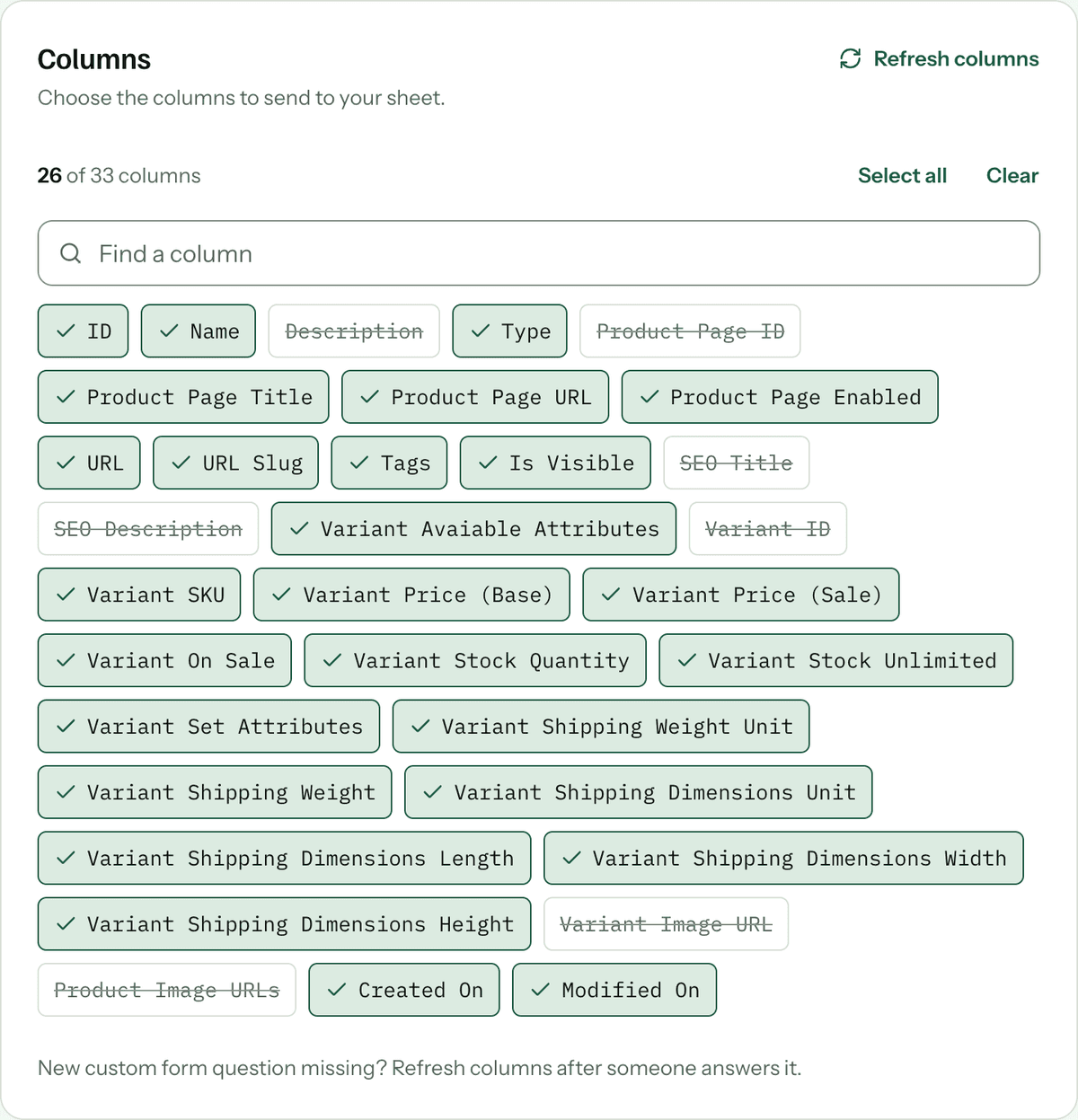
Two details matter for formulas. When a variant is out of stock, its Variant Stock Quantity cell is empty rather than 0. And Variant Stock Unlimited is empty unless the variant has unlimited stock. The formulas below handle both.
Step 2: the low stock sheet
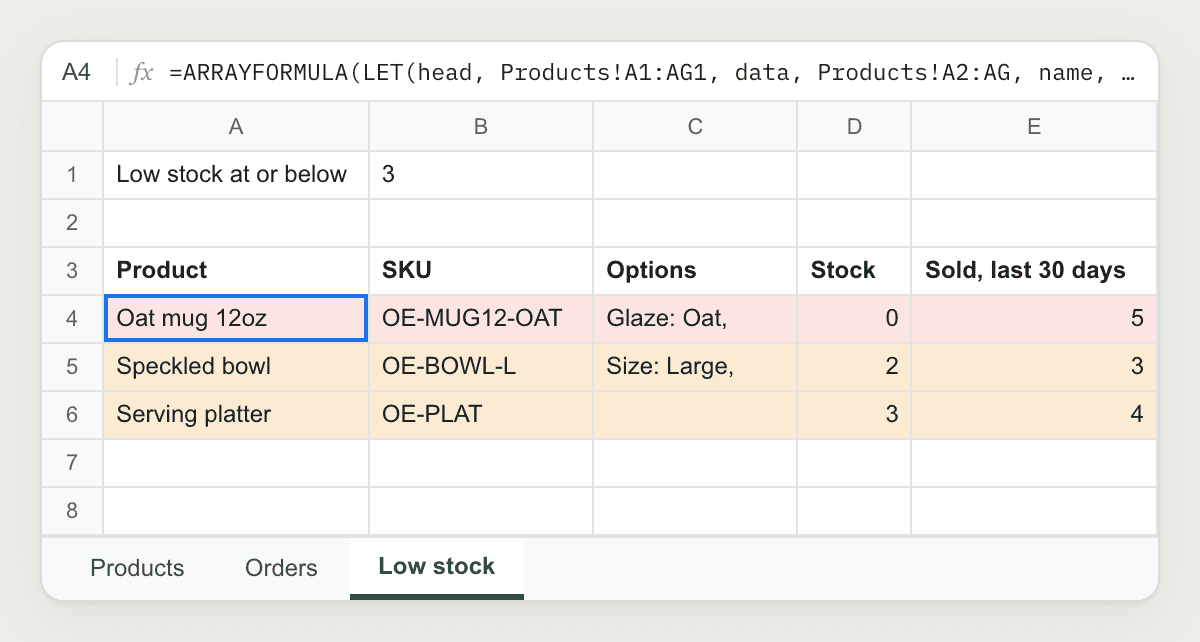
- Add a sheet with + at the bottom left and name it
Low stock. - In A1 type
Low stock at or below, and in B1 type your threshold, for example3. - In row 3, type the headings Product, SKU, Options, Stock and Sold, last 30 days.
- In A4, paste:
=ARRAYFORMULA(LET(
  head, Products!A1:AG1,
  data, Products!A2:AG,
  name, INDEX(data, 0, MATCH("Name", head, 0)),
  stock, INDEX(data, 0, MATCH("Variant Stock Quantity", head, 0)) * 1,
  unlimited, INDEX(data, 0, MATCH("Variant Stock Unlimited", head, 0)),
  SORT(FILTER({
    name,
    INDEX(data, 0, MATCH("Variant SKU", head, 0)),
    INDEX(data, 0, MATCH("Variant Set Attributes", head, 0)),
    stock
  }, name <> "", unlimited <> TRUE, stock <= B1), 4, TRUE)
))
Before it works, check three things in your products sheet and adjust the formula to match:
- The sheet name. Change
Productsif yours is called something else. Use quotes for names with spaces, like'Stock levels'!A1:AG1. - The last column. Change
AGto the letter of the last column with a heading. It's different if you switched columns off. - Show the last sync time. If it's on, the headings are on row 2, so use
Products!A2:AG2andProducts!A3:AG.
What the formula does: it finds each column by its heading, so the order of columns doesn't matter. * 1 turns the empty stock cells of sold-out variants into 0. FILTER keeps rows that have a name, aren't set to unlimited stock, and have stock at or below the number in B1. SORT(..., 4, TRUE) puts the lowest stock first. Change B1 and the list changes with it.
If every variant is above your threshold, the formula shows #N/A with "No matches are found in FILTER evaluation". Nothing is running low.
Step 3: colour the rows
- Select A4:E100 on the Low stock sheet.
- Click Format > Conditional formatting.
- Under Format rules, choose Custom formula is, enter this, and pick a light red fill:
=AND($A4 <> "", $D4 = 0)- Click Add another rule, choose Custom formula is again, enter this, and pick a light yellow or orange fill:
=AND($A4 <> "", $D4 > 0)- Click Done.
Sold-out variants are now red and low ones yellow. Because the colours come from rules, not from cells you painted, they follow the rows as the list changes.
Step 4: add sales from the last 30 days
Knowing you have 2 left matters more when you sold 10 last month. If you also sync your orders to a sheet in the same spreadsheet (called Orders here), you can add units sold per SKU. Orders have a Product SKU column holding the same variant SKU.
Paste this into E4, then copy it down to row 100:
=IF(B4 = "", "", SUMIFS(
  INDEX(Orders!$A$2:$AF, 0, MATCH("Quantity", Orders!$A$1:$AF$1, 0)),
  INDEX(Orders!$A$2:$AF, 0, MATCH("Product SKU", Orders!$A$1:$AF$1, 0)), B4,
  INDEX(Orders!$A$2:$AF, 0, MATCH("Created On", Orders!$A$1:$AF$1, 0)), ">=" & (TODAY() - 30),
  INDEX(Orders!$A$2:$AF, 0, MATCH("Fulfillment Status", Orders!$A$1:$AF$1, 0)), "<>CANCELED"
))
It adds up Quantity on order rows where the SKU matches, the order was created in the last 30 days, and the order wasn't cancelled. As with the other formula, change Orders and AF to match your orders sheet. Rows without a SKU stay blank, so give each variant a SKU in Squarespace if you haven't.
This formula sits next to a formula result, which is fine here: it reads the SKU from its own row, so it always matches the product beside it.
Check that dates are real dates
The 30-day comparison only works if Google Sheets reads Created On as a date. SuperJack writes it in your store's time zone as month/day/year, for example 10/16/2026 8:03:00 AM. In a spreadsheet set to a month-first locale such as United States, Google Sheets reads that as a date and time.
To check, type this in an empty cell of your Low stock sheet. Created On is always column C of the orders sheet (use C3 if headings are on row 2):
=ISNUMBER(Orders!C2)TRUE means you're set. If it says FALSE, the dates came in as text. Go to File > Settings, set Locale to United States, and click Save settings. Each sync updates the whole order history, so after the next hourly sync (or Run a test sync) Google Sheets reads every Created On as a date.
Stock updates hourly, not live
SuperJack syncs every hour, so the products sheet can be up to an hour behind Squarespace. That's plenty for deciding what to make or reorder this week. It isn't a live counter, and Squarespace itself still decides when something sells out on your site.
What to build next
Using the same orders sheet, you can build a packing list of unfulfilled orders, or see revenue by month and your best sellers.
SuperJack syncs your Squarespace orders and products to Google Sheets every hour. Start your free trial: you get 3 days to try it, and you can cancel any time.