9 min read
A free Google Sheets template for running your Squarespace store
One spreadsheet for your sales, pick list, customers, profit, stock and sales by state, built around your Squarespace orders. Free to copy, with a guide to every sheet and a weekly routine for using it.

Tristan Tsvetanov
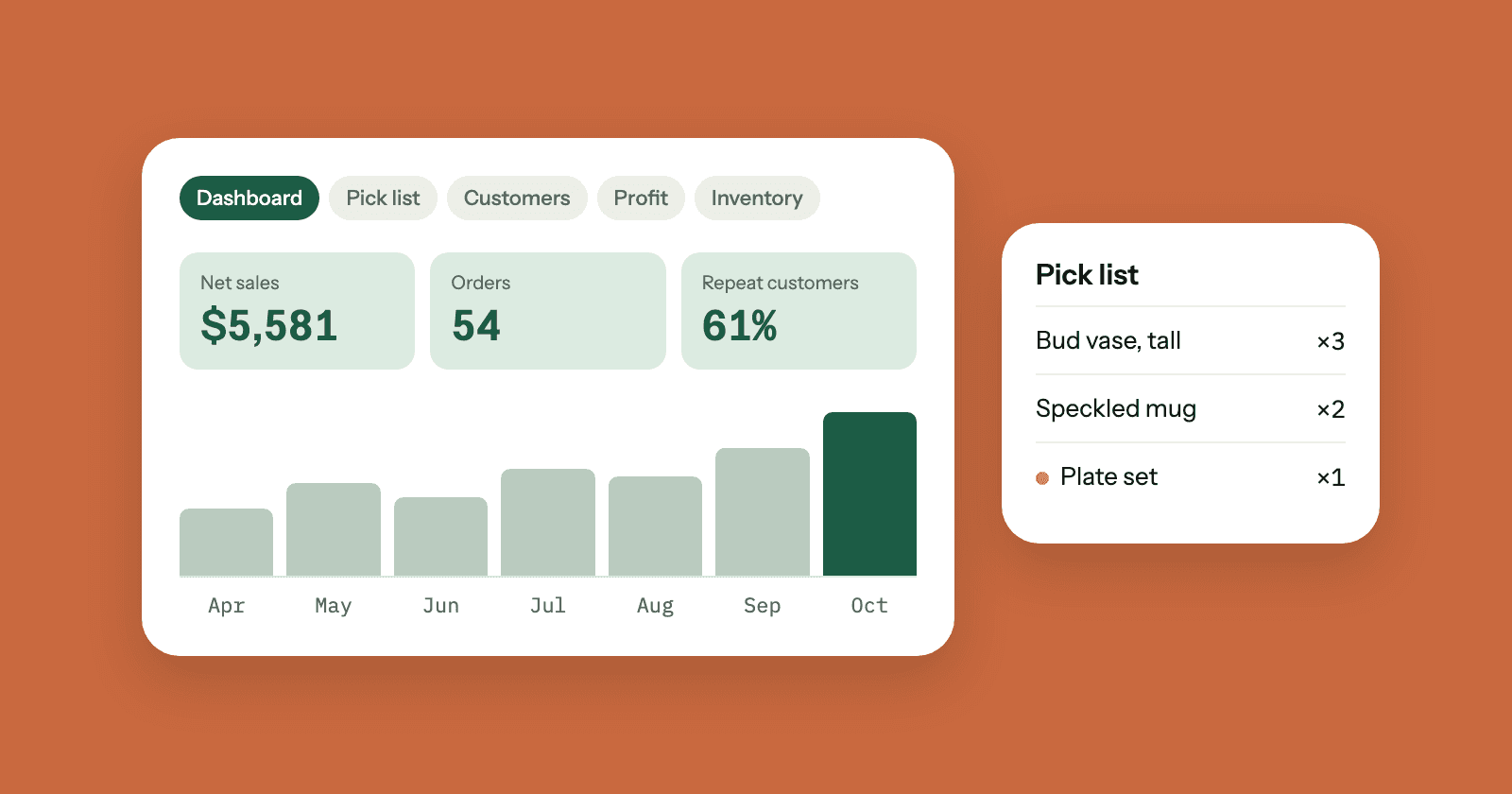
This guide is for Squarespace sellers who run their store from a spreadsheet, or want to. We built a free Google Sheets template that turns your Squarespace orders and products into the reports you check every week: how much you sold, what to pack today, who your best customers are, what you actually made, and what to restock. Below is what each sheet does, how it works, and a simple routine for using it.
Get the free template. It opens a copy in your own Google Drive.
What's in the template
The template is one spreadsheet with these sheets:
- Start here: a short version of this guide.
- Dashboard: net sales, orders, average order, units sold, customers and repeat customers for any period, a month-by-month table and chart, and your top 10 products.
- Pick list: every item in your unfulfilled orders, added up so you pick each product once, plus each order to pack with its custom form answers.
- Customers: everyone who has ordered, how many times, how much they've spent, and who hasn't been back in a while.
- Profit: monthly profit after card fees, Squarespace fees, product costs and your regular expenses.
- Inventory: stock for each variant, how fast it's selling, how many days it will last, and what to reorder.
- Sales by state: orders and sales per state for a year.
- Settings: your fees, what each product costs you, and your monthly expenses.
- Orders and Products: your store's data. Every other sheet reads from these two.
It comes filled with sample data from a made-up pottery studio, so you can see every report working before you add your own.
How it works
The Orders sheet has one row per item ordered. An order with a mug and a vase takes two rows, with the order's details, like the order number, customer and total, repeated on each. The Products sheet has one row per variant, so a mug in two glazes takes two rows.
Every report finds the columns it needs by their headings in row 1, so the order of the columns doesn't matter and you can hide the ones you don't use. The reports update as soon as the data changes. There's nothing to refresh and no macros.
Three rules keep it working:
- Keep the headings as they are. A report can't find a renamed column.
- Keep each order's rows together. The reports count an order once, on its first row, so its items need to sit on rows next to each other.
- Don't type in the Orders or Products sheets. Add your own notes and calculations on a new sheet.
Canceled orders are left out of every report. Pending orders count as sales and show on the pick list. The reports read up to 20,000 order rows.
Step 1: make your copy
- Open the template link and click Make a copy.
- Rename the copy if you like, for example
Clay & Co. store. - Look around with the sample data still in. It's the quickest way to see what each sheet shows.
The template uses Google Sheets formulas, so use it in Google Sheets rather than downloading it for Excel.
Step 2: add your orders and products
There are two ways to get your store's data in.
Automatically, with SuperJack. SuperJack syncs your Squarespace orders and products to Google Sheets every hour, using exactly the column names the template expects. Set up two workflows in your copy of the template:
- Click New workflow, choose Orders under What to sync, then pick your copy of the template and the Orders sheet.
- Click New workflow again, choose Products, and pick the Products sheet.
- Click Run a test sync on each. The sample data is replaced with your store's, and every report updates.
From then on, every sheet stays current on its own. Each sync rewrites the Orders and Products sheets to match your store, which is why anything typed into them is replaced.
By hand. Delete the sample rows and paste your orders under the headings, one row per item, keeping each order's rows together. Squarespace's own order export names its columns differently and puts its values in different formats, so you'll need to rename and tidy its columns to match the template's headings each time you paste.
Step 3: fill in Settings
The yellow cells on the Settings sheet are yours to fill in:
- Card processing fee and fee per order: what your payment provider charges. It's set to 2.9% plus $0.30, a common rate in the US. Check a recent statement for yours.
- Squarespace transaction fee: depends on your Squarespace plan. Many plans have none.
- Low stock warning, days of sales for inventory and when a customer counts as lapsed: the thresholds the Inventory and Customers sheets use.
- Product costs: one row per SKU with what one unit costs you to make or buy. The Profit sheet multiplies these by units sold. A SKU without a cost counts as 0.
- Monthly expenses: costs you pay every month whatever you sell, like your Squarespace plan, packaging or studio rent.
Replace the sample costs and expenses with yours. You only need to come back when a price changes or you add a product.
The Dashboard: how your store is doing
The two dates at the top set the period. They start as your last 12 months, ending on your latest order. Type any dates over them to look at a season, a launch or last month.
- Net sales: what customers paid, minus refunds. It includes shipping and tax, as charged.
- Orders and Average order: canceled orders aren't counted.
- Units sold: every item in those orders.
- Customers and Repeat customers: how many people ordered in the period, and the share of them who ordered more than once in it.
Below that, Month by month shows orders, sales, refunds and units for each of the 12 months, with a chart of net sales, and Top products in this period lists your 10 best sellers by sales.
The Pick list: what to pack today
Everything in orders that are still pending, meaning not fulfilled or canceled:
- What to pick adds up each item across all your open orders, so if five orders include a tall bud vase you see
Bud Vase - Size: Tallonce, with a quantity of 5. - Orders to pack lists each open order with its date, customer, items, quantities, custom form answers and shipping method.
When you mark an order fulfilled in Squarespace, it drops off the list. With SuperJack, that happens on the next hourly sync.
Customers: who keeps coming back
One row per customer email, most valuable first, with their name, number of orders, total spent, refunds, and first and last order dates. The last two columns show days since their last order and a status:
- New: one order, recently.
- Repeat customer: more than one order.
- Lapsed or Lapsed repeat customer: no order for longer than the number of days in Settings, 90 to start with.
The counts at the top tell you how many customers you have, how many came back, and how many have lapsed. Lapsed repeat customers are the people most worth a personal note or a discount code.
Profit: what you actually made
One row per month for your last 12 months:
- Product sales: each order's subtotal, before discounts, shipping and tax. Shipping and tax you collect aren't counted as income.
- Refunds: what you gave back.
- Card fees: your rate from Settings applied to what the customer paid, plus the fee per order.
- Squarespace fees: your transaction fee from Settings, if you have one.
- Product costs: units sold times each product's cost from Settings.
- Monthly expenses: the total of your expenses list.
- Profit and Margin: what's left, in dollars and as a share of product sales.
It's an estimate, not your accounts. Discounts aren't subtracted, and shipping labels only count if you add them to your monthly expenses. It's still the quickest way to see whether a busy month was a profitable one, and which months your fixed costs outweigh your sales.
Inventory: what to restock
One row per physical variant from the Products sheet, with:
- In stock: from Squarespace. An empty stock cell means 0.
- Sold: units sold in the last 30 days, or the number of days you set in Settings.
- Days of stock: how long what's left will last at that pace.
- Status: Out of stock, Low stock at or below your warning level, Reorder soon when it will run out within 14 days, OK, or Unlimited for variants set to unlimited stock in Squarespace.
Days of stock is more useful than the stock number alone: 4 mugs is plenty for a slow seller and three days' worth for a fast one.
Sales by state
Orders, sales and refunds for one year, grouped by the customer's billing state and sorted by sales. Type a different year at the top to look back. Sales here include shipping and tax, as charged. It's a starting point for checking where you might need to collect sales tax, so go through the thresholds with your accountant.
A weekly routine
The template is most useful when looking at it is a habit. Here's a routine that takes about 15 minutes a week:
- Every day you ship: open the Pick list, pull everything in What to pick, then pack each order from Orders to pack.
- Monday: check the Dashboard for last week. Set the dates to the week if you want a close look, and see what's selling in Top products.
- Monday: go down the Inventory status column. Anything marked Reorder soon or Low stock goes on this week's making or ordering list.
- Once a month: look at Profit for the month just finished, and update Settings if a cost or fee has changed.
- Once a month: sort through Customers for lapsed repeat customers and send a few a personal note.
- Once a year: check Sales by state before you file.
Troubleshooting
- A report is empty or shows a message like "No sales in this period": there's nothing to show yet for that period or filter. On the Dashboard, check the two dates.
- Numbers look too high: an order's rows might not be next to each other, so it's counted twice. Sort pasted orders by order number. SuperJack always writes them together.
- A whole report is blank after pasting: a heading in row 1 of Orders or Products is spelled differently from the template's. Copy the template's heading back.
- Profit looks wrong: check that every SKU you sell has a cost on the Settings sheet and that the SKUs match exactly.
Let SuperJack keep it up to date
The template is free and works with any data you paste in. The part that takes time is keeping it current: exporting from Squarespace, tidying the columns, and pasting again every few days, while the pick list and stock levels fall out of date in between.
SuperJack does that part for you. It syncs your Squarespace orders, custom form answers included, and your products and stock to the template every hour, so the Dashboard, Pick list, Customers, Profit and Inventory sheets are always current without you touching them. Setup takes about two minutes. Start your free trial: you get 3 days to try it, and you can cancel any time.